Editing PDFs without a designer: page numbers, watermarks, merging, text and forms
How to edit finished PDFs on Kugel Platform without a model: stamps, page operations, text extraction, comparison, OCR and forms, with results and limits as read on 15 October 2026.
26 min read By Platform Documentation Guide #Publishing
Outcome
Change a finished PDF without reopening a design tool
A finished PDF is awkward to change. The layout it came from may no longer be open, the template may have moved on, and the change you need is usually small: page numbers, a DRAFT mark, one page removed, two handouts joined into one, or a check that nothing else moved.
The PDF editing tools make those changes directly on the file. No model is called, so the same file and the same instructions give the same result. Every tool that writes saves a new PDF under its own address, in the same request as the original. The original is never changed, and nothing reaches readers until an article links to the new file.
This article is the deeper companion to the one on rendering PDFs from templates. That one covers how a PDF is made. This one covers what you can do to a PDF once it exists.
Every result shown here was produced through this site's connection on 15 October 2026, and the figures are copied from the tools' own responses. Where a behaviour comes from a tool's description and was not run, the text says so.
Core terms
Six terms to know
These terms appear in every example below.
Request: the article, or other object, that owns a file. Each tool names a request and can only touch PDFs that belong to it. Merge and compare can bring in a PDF from another request by naming that request.
Address: where a stored file is served, in the form /pdf/request/fingerprint.pdf. The fingerprint identifies the exact bytes, so two different edits never share an address.
Operation: one edit. An overlay stamps content onto pages. A transform changes which pages exist and in what order. Optimize shrinks the file. Form fill sets field values.
Read-only check: a call that looks at a PDF and writes nothing, such as comparison and OCR.
Page range: pages are counted from 1 and written like 1-3,5,8- (pages 1 to 3, page 5, and page 8 to the end).
Policy: the site's PDF settings, such as the most pages one call may handle. A per-call limit may narrow the policy but not widen it.
Core terms
The tools, one line each
pdf_overlay: stamps text, an image, a watermark, page numbers, a header or a footer onto chosen pages. Saves a new PDF.
pdf_transform: merges, splits, extracts, reorders, rotates, deletes and inserts pages. Saves one new PDF, or one per range when the last step is a split.
pdf_optimize: shrinks the file and reports the bytes saved. A result that comes out larger than the original is still saved and reported as such.
pdf_extract: reads the text of chosen pages with the position of every word, line or block. It can also save embedded pictures as image files.
pdf_form_fill: lists the fillable fields of a PDF, or fills them and optionally flattens them. Saves a new PDF.
pdf_compare: compares two PDFs page by page and reports where pixels differ. Writes nothing.
ocr_extract: reads an image, or one PDF page, as text with a confidence score and a position for every word. Writes nothing.
get_pdf_ops_policy and set_pdf_ops_policy: read and change the site's limits. Reading changes nothing.
inspect_pdf_artifact and rasterize_pdf_artifact: report a PDF's page count, size and text length per page, or turn its pages into images you can look at.
Relationship
How the tools fit together
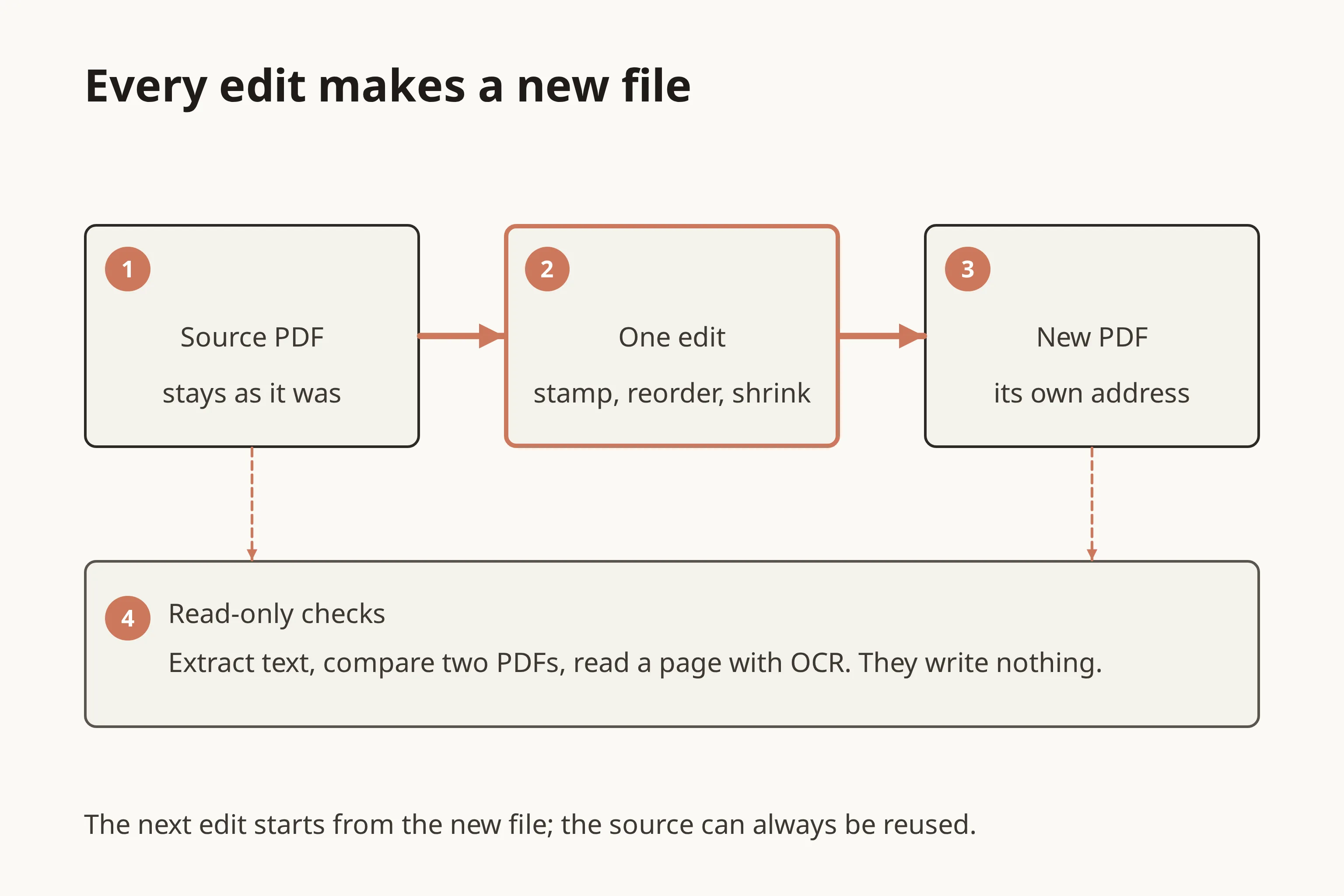
Think of a PDF as a file with an address. An edit takes that address in and gives a new one back. The next edit starts from the new address, and the original stays available for any step you want to redo. Read-only checks can look at either file.
In the admin chat you describe the change in plain words, such as "number the pages and mark the whole thing as a draft". A sensible order for the agent behind it is:
Read the policy with get_pdf_ops_policy, so the page and file limits are known before anything starts.
Inspect the source with inspect_pdf_artifact for its page count, its size and whether each page has a text layer.
Make the edit with pdf_overlay, pdf_transform, pdf_optimize or pdf_form_fill. The call returns the new file's address.
Look at the result: rasterize a page to see it, extract or OCR its text, and run pdf_compare against the source.
Attach the new address to the article. The article's validation then runs its PDF quality checks, which warn and never block.
These calls are synchronous: the answer comes back in the same call, with no job to poll. A write that times out can be retried with the same idempotency key, which returns the original result instead of saving a second file.
Example 0
Example: the sample document
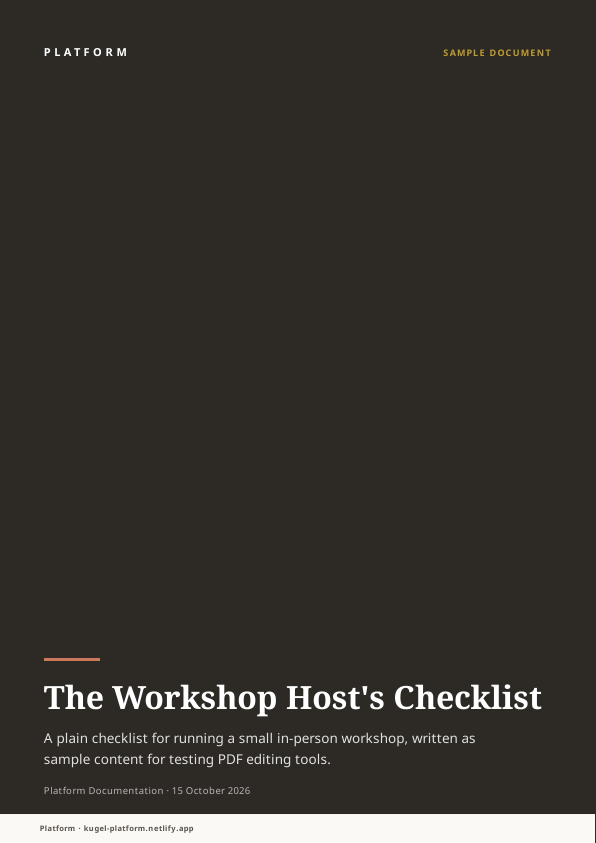
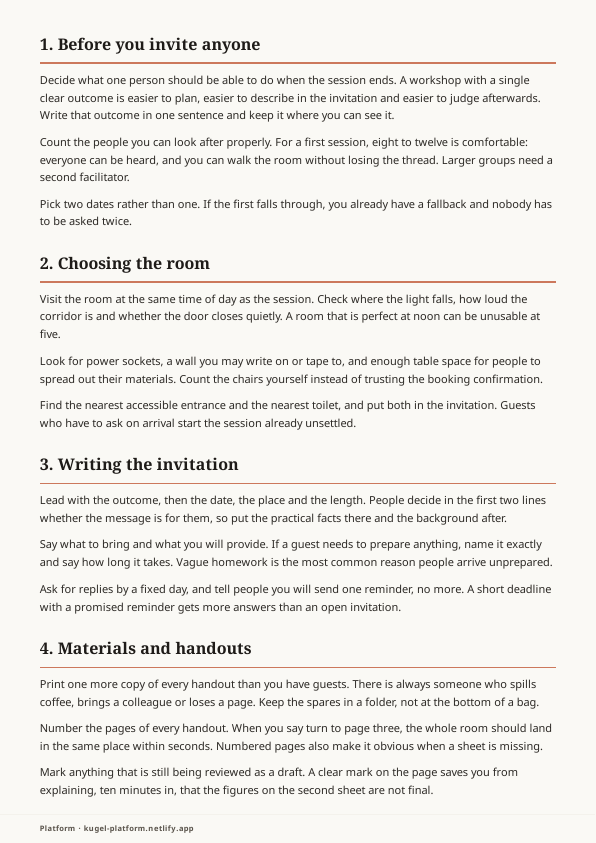
The examples use one sample document: a four-page workshop checklist rendered from this site's article template as a lead magnet, with no model involved.
The render was given a requirement of at least four pages. The first attempt produced three, and the job failed with PDF_REQ_PAGE_COUNT_MIN ("Rendered PDF page count is below minimum", expected at least 4, actual 3). It returned no file. After three more sections were added to the data, the second attempt completed: four A4 portrait pages, 27,848 bytes, with a text layer on every page (248, 2,409, 2,204 and 1,645 characters) and no pictures. The quality gate reported no findings.
That is the page-count requirement doing its job. A requirement turns a render that is too short into a refusal you can read, instead of a file that is quietly too small.
Example 0
Download the original sample document
The four-page source, exactly as rendered, before any edit.
Example 1
Example 1: page numbers and a DRAFT watermark
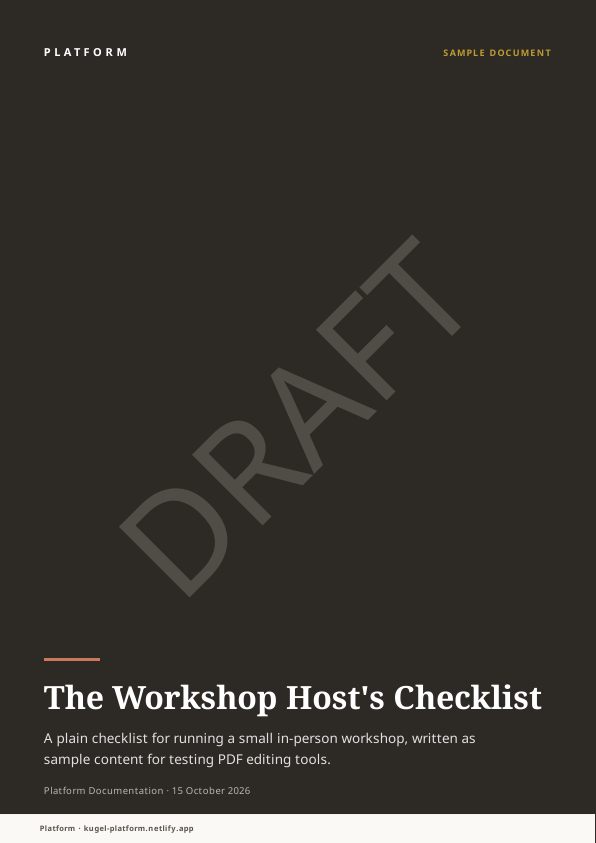
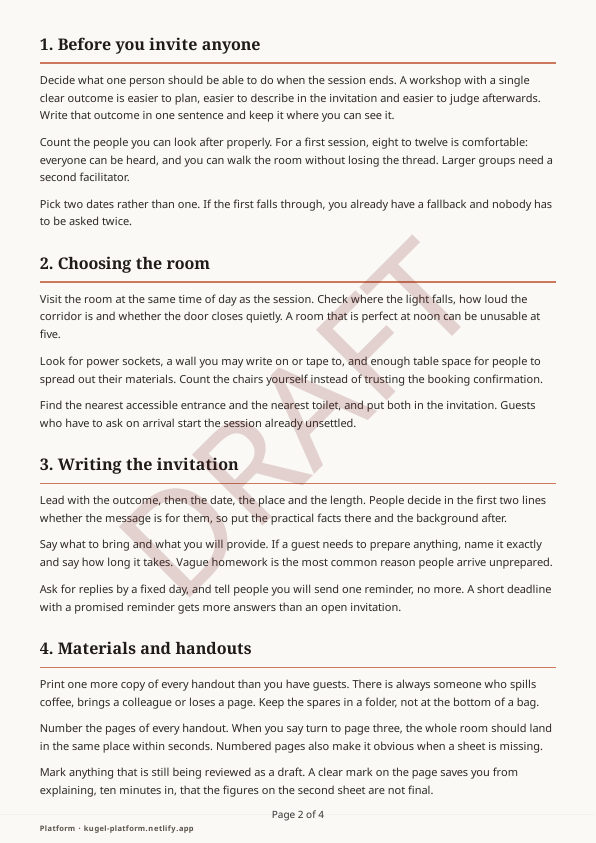
Status on 15 October 2026: run live. One overlay call stamped the sample document with a DRAFT watermark and page numbers and saved the result as a new PDF.
The request had three items:
A DRAFT watermark on pages 2 to 4: colour #7a1f1f (dark red), opacity 0.18, rotated 45 degrees, 140 points tall.
A DRAFT watermark on page 1, the dark cover: colour #f2e9d8 (pale cream), with the same opacity, rotation and size.
Page numbers on pages 2 to 4, in the form Page {page} of {total}, at the bottom centre, 10 points, colour #333333.
There are two watermark items because one colour cannot be read on both a dark cover and light pages. The colours were measured against the pages first with measure_contrast, which judges the worst case against a minimum ratio of 4.5:
#7a1f1f on page 2: 5.29. On page 4: 7.42. Both pass.
#7a1f1f on page 1, the cover: 1.39. Fails.
#f2e9d8 on page 1: 11.85. Passes.
#d9d9d9 on page 2: 1.34. Fails.
The result is a new four-page PDF of 29,700 bytes. The original is unchanged at 27,848 bytes. The response listed seven placements, four watermarks and three page numbers, each with its position on the page. The watermark box measured about 438 by 438 points. It also carried a verification block: the tool read the text back from the saved file and found every stamp, so allItemsVerified was true.
The first attempt went wrong in a useful way. It asked for the format Page {n} of {total}, and {n} is not a token. The tool drew the text exactly as given, saved the file, and reported PDF_OVERLAY_UNKNOWN_TOKEN: "items[2]: {n} is not a supported token (supported: {page}, {total}); the text was drawn as given". allItemsVerified was false. The saved file shows Page {n} of 4 at the foot of pages 2 to 4, and it stays in the request's store, because every write saves a new file. Read allItemsVerified after every overlay.
Leaving the colour out is the other route. A DRAFT watermark with no colour came out white on the cover (background #2d2a26, contrast 14.28) and black on page 2 (background #ebeae5, contrast 18.2), and the response says so with colorSource auto-contrast. The opposite case matters more. A deliberate #d9d9d9 watermark on page 2 was saved with no warning and no contrast figure, because a colour given in the request is used as given. The 1.34 measured above never reached the response. Measure first, or leave the colour out.
At opacity 0.18 the mark is visible but quiet: pale pink on page 2 and grey on the cover. Raise the opacity if it needs to be stronger.
Example 1
Download the stamped version
The sample document with the DRAFT watermark and page numbers, as saved by the second attempt.
Example 2
Example 2: extracting pages 2 and 3
Status on 15 October 2026: run live. One transform call extracted pages 2 and 3 of the sample document into a new PDF.
The request had one input, the sample document, and one operation: extract, with the pages set to 2-3. The result is a two-page PDF of 21,466 bytes. inspect_pdf_artifact reports 2,409 and 2,204 characters of text on its two pages, the same counts as pages 2 and 3 of the source, and its quality gate passed with no findings.
Operations run in the order given, and each one sees the document as the previous one left it. That is why extract can be followed by rotate, reorder or delete in the same call; Example 5 chains four. A split must be the last operation and returns one file per range.
Asking for a page that is not there is refused before anything is saved. Extracting page 7 from the four-page sample returned: "operations[0] (extract).pages: page 7 is beyond the document's 4 pages". The tool's description names the code PDF_OPS_INVALID_RANGE for this case. The text returned through this site's connection carried the message only, so the code itself was not seen.
The page cap for one call comes back in every response as effectiveLimits: 200 pages by default.
Example 2
Download pages 2 and 3
The two extracted pages as a separate PDF.
Example 3
Example 3: reading the text a file stores
Status on 15 October 2026: run live. pdf_extract and inspect_pdf_artifact were used on the sample document and on the stamped version.
There are two ways to get text out of a PDF, and they answer different questions. This one reads the text the file stores. The next one reads the pixels.
inspect_pdf_artifact tells you whether a file has stored text without returning it: the sample reports 248, 2,409, 2,204 and 1,645 characters on its four pages. A page that reports zero is a picture of text and needs OCR.
pdf_extract returns the text itself, page by page. With lines asked for, each line comes with a box, given twice: as fractions of the page measured from the top-left corner, and in points. Lines come in the order the file lays them out. Words, lines and blocks are the three levels, and words is the default.
On the cover, extraction returned seven lines, among them "The Workshop Host's Checklist" and "A plain checklist for running a small in-person workshop, written as". It also showed a limit. Where a label is spaced wide, as the small capitals PLATFORM and SAMPLE DOCUMENT are, the reader inserts stray spaces and returns "PLATF O R M" and "S A M P L E D OC U M E N T". The footer came back as "Platform · ku gel-platform.n etlify.app" where the page says "Platform · kugel-platform.netlify.app". The characters are right and the spaces are wrong, so allow for that when you search the text.
Extraction on a stamped file shows what stamping does to the text. On page 4 of the stamped version, the page number is found as an ordinary line, "Page 4 of 4". The watermark is not found as the word DRAFT. Its rotated letters come back as separate fragments, "FT", "RA" and "D", each with its own box, between the lines of the body text.
Pages are written as a range such as 1-3,5,8-. A per-call limit can be set below the site's policy, and the tool then refuses a window that is too wide. With a limit of one page, a request for pages 1 to 3 returned: "3 pages is over the 1-page per-call limit; ask for a narrower "pages" window (e.g. "1-1") and page through the document".
Not run: pdf_extract with pictures turned on, which saves each embedded picture as an image file. The sample has no pictures.
Example 3
Example 3, continued: OCR for pages that are pictures
OCR (optical character recognition) reads the pixels instead. It can read scans and images, and it gives every word a confidence score from 0 to 100. On page 4 of the sample document, at 100 dpi, it read 290 words. Body lines scored between 91.85 and 96.58, and the footer line 80.92. On the cover, at 150 dpi, it read 35 words, but the footer line scored 71.33 and came back as "Platform - kugel-platform.net! p" where the page says "Platform · kugel-platform.netlify.app". A low score is the signal to check by eye.
Set side by side, the two readings of that footer show the usual trade. Extraction had the right characters with extra spaces. OCR had spaces in the right places and some wrong characters. Use extraction when a page has stored text, and OCR when it does not.
OCR also reads images. Pointed at the diagram earlier in this article, it returned all six lines of its text with scores from 86.76 to 96.28. The numbered badges were missed, or in one case read as a registered-trademark sign, and "stays as it was" came back capitalised. That makes OCR a useful proof-read for a diagram, because broken labels are the part you cannot see in a thumbnail.
OCR reads English by default. Hebrew and Arabic have to be asked for by name, and a language outside the site's list is refused. Asking for French returned: "language(s) fra are not in this project's ocrLanguages policy (eng, heb, ara); a per-call override may narrow the policy, not widen it".
Example 4
Example 4: comparing the original with the stamped version
Status on 15 October 2026: run live. The original sample document was compared with the stamped version from Example 1, at the default 100 dpi and the default thresholds.
The overall status was warn, with all four pages differing:
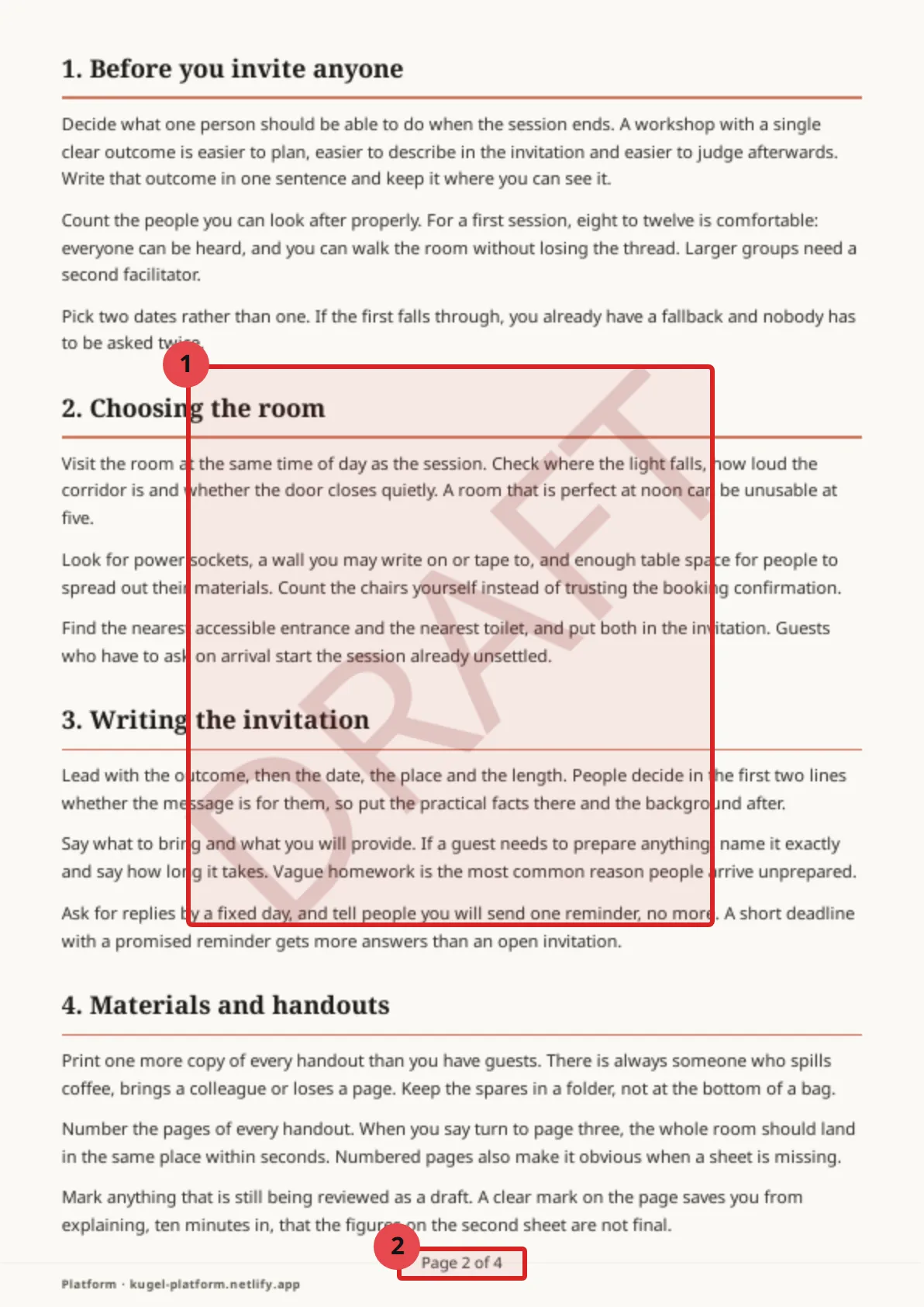
Page 1: 2.58% of pixels differ, in one region, the watermark.
Page 2: 2.41%, in two regions: the watermark (23,063 pixels) and a small box at the foot of the page (306 pixels), the page number.
Page 3: 2.47%, with the same two regions.
Page 4: 2.45%, with the same two regions.
Regions come back as boxes in fractions of the page. On page 2 the watermark region starts 20% across and 28% down, and is 57% wide and 43% tall. The figure draws it as box 1. The page number is box 2, drawn a little larger than the reported region so that it can be seen.
This is the reading that makes a compare worth running. On every page the differing pixels add up to the pixels inside the regions, so nothing outside the two stamps changed and the stamping did not move the body text. The status is warn because each page is above the default limit of 1% of its pixels.
Example 4
Example 4, second comparison: a small wording change
Status on 15 October 2026: run live. The edited version here is a re-render of the sample document with three small wording changes, and pdf_compare treats it like any other pair of PDFs.
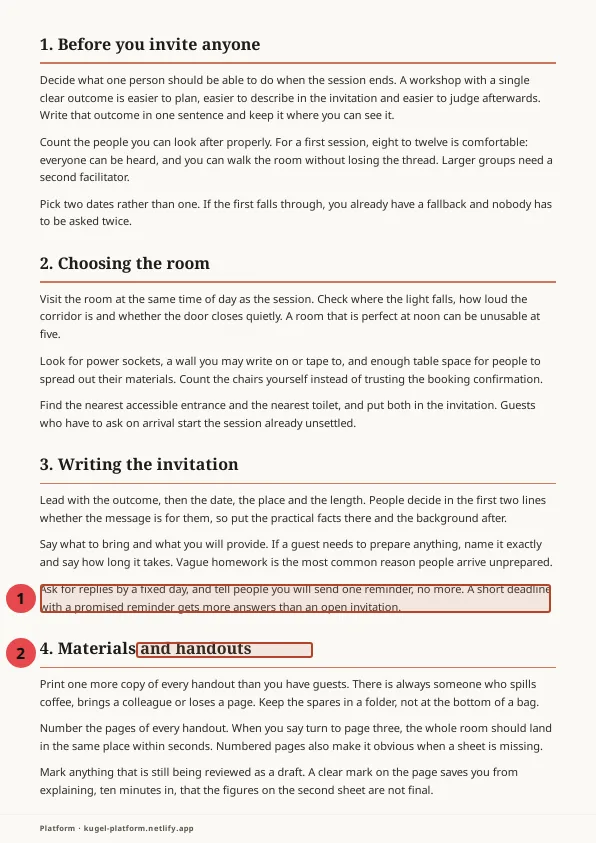
The changes were: "one reminder" became "two reminders" in section 3, the heading of section 4 became "Materials, handouts and spares", and "Ten minutes" became "Fifteen minutes" in section 6. Compared at the default 100 dpi, the result was:
Page 1: no differing pixels.
Page 2: 0.67% of pixels differ, in two regions. They are the numbered boxes in the figure: the changed sentence in section 3 and the changed heading in section 4.
Page 3: 0.18% differ, in one region: the line that now says Fifteen minutes.
Page 4: no differing pixels.
The overall status was pass and pagesDiffering was 0. Both are correct, and both can mislead. The default threshold lets a page differ by up to 1% of its pixels before it warns, and three edited lines come to less than that. Run again at 72 dpi with the threshold tightened to 0.05%, the same pair gave status warn with two pages differing. Choose the threshold for the question you are asking: a tight one to prove two files are identical, the default to ignore rendering noise.
Regions come back as boxes in fractions of the page, which is how the boxes in the figure were drawn on page 2 of the original. Comparing a page that neither file has does not fail: page 9 came back as missing_in_both, with an overall status of warn.
Example 4
Download the edited version
The same document after the three wording changes. Compare it with the original to see the regions above.
Example 5
Example 5: reorder, rotate, delete, merge, split and shrink
Status on 15 October 2026: run live, except where marked. Each call used the sample document or a file made from it.
Delete, reorder, rotate and insert a blank page, in one call. The operations were: delete page 1, reorder to 3,1,2, rotate page 1 by 90 degrees, insert a blank page after page 1. The result has four pages and 24,027 bytes. Each step works on the document as the previous step left it: deleting page 1 left the old pages 2, 3 and 4, and the reorder put the old page 4 first. inspect_pdf_artifact confirmed the order with text lengths of 1,645, 0, 2,409 and 2,204 characters, which are the old page 4, the blank page, the old page 2 and the old page 3. Rasterized, page 1 came out 843 by 596 pixels, a landscape page, so the rotation took effect.
The blank page trips the quality gate. inspect_pdf_artifact reported passed false with BLANK_PAGE on page 2: "Page 2 carries 0 characters of extracted text, under the 40-character minimum; its content slots most likely did not bind." The gate was written for renders that failed, so a deliberate blank page is flagged as well. Treat that finding as expected here.
Merge. Two inputs, the pages 2 and 3 file and the original, then one merge operation. The result has six pages and 45,281 bytes. The default limit is 20 inputs per call.
Split. One input and one split operation with the ranges 1 and 2-4. The result is two files named with a part number: part 1 has one page (16,291 bytes) and part 2 has three pages (23,998 bytes). A split must be the last operation.
Shrink. pdf_optimize at the policy's 150 dpi took the sample from 27,848 to 26,663 bytes, saving 1,185 bytes or 4.3%. It considered no pictures, because the sample has none, so the saving came from tidying the file's structure. The result is also linearized, which arranges the file so that a viewer can start showing page 1 before the whole file has arrived.
Not run: inserting pages from another input, rotating by 180, 270 or minus 90 degrees, a split with ranges that are not next to each other, and optimizing a PDF that has pictures. The tool's description says a result larger than the original is saved and reported with a negative saving. That case was not seen.
Example 5
Download the rearranged version
The result of the delete, reorder, rotate and insert-blank call. Page 1 is landscape and page 2 is blank on purpose.
Example 6
Example 6: a header, a text stamp and a line of Hebrew
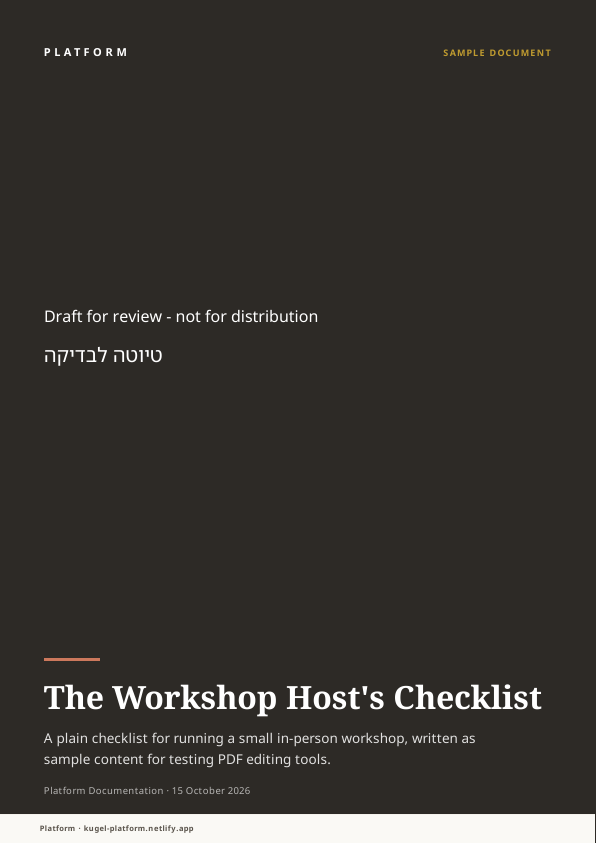
Status on 15 October 2026: run live. One overlay call added a header to pages 2 to 4 and two text stamps to the cover. No colours were given, so the tool chose them.
Header: "The Workshop Host's Checklist - draft for review", 9 points, pages 2 to 4. It sits at the top centre inside the 24-point header margin and was drawn black, with a contrast of 19.93 on page 2 and 19.09 on pages 3 and 4.
Text stamp: "Draft for review - not for distribution" on the cover, 16 points, at 44 points across and 520 up from the bottom of the page. Coordinates count from the bottom-left corner. It was drawn white against the cover's #2d2a26, contrast 14.28.
Hebrew: a second text stamp on the cover with the Hebrew words for "draft for review", 20 points, below the first. The tool sets Hebrew right to left on its own, and the verification block found the text in the saved file. Looking at the page, the letters read in the right order.
The result has four pages and 32,008 bytes. allItemsVerified was true and the response carried no warnings.
Not run: footers, an image stamp (which takes a PNG or JPEG from the same request) and Arabic.
Example 7
Example 7: listing and filling form fields
Status on 15 October 2026: partly run. The sample document has no form, so the case that was tested is the one where there is nothing to fill.
Listing: pdf_form_fill with the list action returned fieldCount 0 and an empty list of fields. This is not an error, and nothing is saved.
Filling: with the fill action and a value for a field called host_name, the call was refused and nothing was saved: "the PDF has no AcroForm, so there are no fields to fill". The tool's description names the code PDF_FORM_NO_FORM for this case. The code did not appear in the message.
Not run, and taken from the tool's description only: filling a real form (a string for a text field, true or false for a checkbox, a list of strings for a list field), flattening, names that match no field coming back as unknownFields, and a wrong-type value refused with PDF_FORM_INVALID_VALUE. No PDF with fillable fields was available to test against.
The safe order is: list first, fill second, and flatten only when the file is going to readers. Flattening bakes the values into the page and removes the fields, so they can no longer be edited.
Boundary
Settings and limits
The limits below were read with get_pdf_ops_policy on 15 October 2026, twice that day, with the same values both times. The source was "default", meaning this site has no override of its own.
Pages per call: 200, with a hard ceiling of 2,000.
Merge inputs per call: 20, with a hard ceiling of 50.
Optimize image resolution: 150 dpi.
OCR languages: English, Hebrew and Arabic. The largest image OCR will read is 40,000,000 pixels.
Compare: at most 50 regions reported per page. Regions closer than 12 pixels merge, and a region needs at least 1 differing pixel.
Overlay margins: 24 points for headers and 24 for footers.
Overlay colour pick: when a stamp has no colour, the page behind it is sampled at 72 dpi with 2 points of padding, and white or black is chosen. A colour given in the request is used as given.
set_pdf_ops_policy changes these values for every PDF operation on the site, so it is an administrator's decision. It was not called while writing this article. A single call can ask for tighter limits than the policy, never looser ones.
Some limits belong to individual tools. Comparison and page rasterizing handle at most 40 pages per call, at 72 to 150 dpi; that comes from the tool descriptions and was not tested at the limit. A per-call limit can narrow how many pages a call may read: a limit of one page refused a three-page extract with a message that suggests a narrower window.
Two limits apply to what you do with the results. Images in an article are held to 153,600 bytes each, and a page rasterized at 72 dpi fits: page 2 of the sample came to 116,098 bytes and the stamped page 2 to 127,593, while higher resolutions may not. Writes to the store are limited to 60 per 10 minutes for each member, and parallel agents working as the same member share that count.
Boundary
Warnings and failure modes
Each item says what you see, what it means and what to do. Messages are quoted as they came back through this site's connection.
PDF_REQ_PAGE_COUNT_MIN when rendering a source: the file had fewer pages than the requirement asked for, and no file was returned. Add content or lower the requirement.
PDF_OVERLAY_UNKNOWN_TOKEN: a page-number format used a token the tool does not know. The only tokens are {page} and {total}. The tool drew the text as given and saved the file anyway, so the only signs are the warning and allItemsVerified being false. Read both after every overlay.
No warning for a colour you chose. A stamp with an explicit colour is used as given, with no contrast figure, even where the colour cannot be read on the page. Measure with measure_contrast first, or leave the colour out and let the tool pick per page.
BLANK_PAGE from inspect_pdf_artifact: a page has fewer than 40 characters of text. It is meant to catch renders that failed, so it also flags a blank page you inserted on purpose. Check that the page is the one you meant.
"operations[0] (extract).pages: page 7 is beyond the document's 4 pages": a page range reached past the end. Nothing was saved. Fix the range.
"3 pages is over the 1-page per-call limit; ask for a narrower "pages" window (e.g. "1-1") and page through the document": the call asked for more pages than its limit allows. Ask for a narrower window and repeat.
"the PDF has no AcroForm, so there are no fields to fill": the file has no form. List fields first, and check the file you meant to use.
pdf_compare returns pass when every page is under the threshold, not when the pages are identical, and warn when a stamp pushes a page over it. Read pagesDiffering and the regions, and tighten the threshold if the question is whether anything changed. A page that neither file has does not fail: page 9 of the four-page pair came back as missing_in_both, with an overall status of warn.
Extracted text can carry stray spaces where the type is spaced wide, and a rotated watermark comes back as separate fragments. Do not search stamped or letter-spaced pages for whole words without allowing for that.
A low OCR confidence score means the reading may be wrong. Check by eye before trusting the text.
A language outside the site's OCR list is refused. Only an administrator can add one, with set_pdf_ops_policy.
"Write rate limit: 60 writes per 10 minutes, per member. Wait 260s and try again." Wait the number of seconds it gives. Retrying in a loop only extends the wait.
A call that names a PDF belonging to another request is refused. Merge and compare can adopt a file by naming its source request. This comes from the tool descriptions and was not tried.
Refusals from the underlying service, such as ARTIFACT_NOT_VERIFIED for a file it did not produce, come back unchanged beside the connection's own error code, pdf_tool_bridge_request_failed. This is from the tool descriptions and was not observed.
Dated note: from about 16:35 to about 17:10 UTC on 15 October 2026, pdf_overlay, pdf_transform, pdf_extract, pdf_optimize and pdf_form_fill refused every call with "limits.timeoutMs (718400) is above this service's hard ceiling of 120000". Nothing was written while it lasted. The cause was on the foundry side and it was fixed the same day; the five tools worked by about 17:27 UTC.
Boundary
Related articles
Next safe operation: read the policy with get_pdf_ops_policy, which changes nothing, then inspect the PDF you want to edit with inspect_pdf_artifact. Edits come after that, one at a time, each saved as a new file.
Downloadable PDFs: Turning Platform Content Into a Document covers how a PDF is rendered from a template.
How Images Are Found, Made and Checked covers the images used inside PDFs and the checks on them.
How an artifact is made: from brief to published image follows one artifact from brief to published file.
What Happens to an Article Before It's Ready to Publish covers the validation that checks an attached PDF.
From Draft to Live: How Publishing Works covers the states between saved and live.
Other articles in this series on images and PDFs:
Download any article as a PDF: templates, kinds and the quality check
Labels, arrows and callouts on images: annotating without a designer
One image, every screen: resizing, smart crops, splits and layouts
Checking images against the brand: colour, contrast, sharpness and logo placement
Finding and importing stock images: search, shortlist, licence and attribution
AI images in your site's own style: brand imagery, routing, candidates and edits