Checking images against the brand: colour, contrast, sharpness and logo placement
What the platform's eight image measurements read, what pass, warn and not_evaluated mean, which limits can be set, and six worked examples measured on a real site image.
21 min read By Platform Documentation Guide #Testing #Publishing
Outcome
Check an image against the site's rules before it goes on a page
A site's images have to use its colours, keep overlaid text readable, stay sharp, fit the slot they are placed in and carry the logo cleanly. Checking that by eye works for one image and breaks down at fifty. Kugel Platform has eight read-only measurements that read an image's pixels and report numbers against limits the site can set.
Each measurement returns a status of pass, warn or not_evaluated next to the numbers behind it. None of them blocks a save, a publish or a release, and none judges whether an image is good or on message. They tell an editor or an agent what the file contains, so the decision is made on facts.
This article defines the eight measurements, the order to use them in, the limits you can set and where they are set. Six worked examples follow, each measured live on a real image from this site on 15 October 2026, with the numbers in tables. It ends with the ways the checks can mislead and what they do not decide.
Core terms
The eight measurements
Each measurement has its own tool. All of them are synchronous: the answer comes back in the same call, nothing is queued, and nothing is written or stored.
Palette (measure_palette). Finds the image's dominant colours and measures how far each one is from a brand palette you supply. The distance is delta E (CIEDE2000): 0 is an exact match, and larger numbers are more visible differences.
Contrast (measure_contrast). Computes the WCAG 2 contrast ratio between a text colour and the part of the image behind the text, or against a background colour you name. A ratio of 1 means identical brightness; higher is easier to read.
Image quality (measure_image_quality). Reports sharpness, noise, clipped shadows and highlights, whether the frame is blank, JPEG blockiness and, when you give a target size, whether the image has enough pixels.
Safe zone (measure_safe_zone). Reads how busy named rectangles of the image are, and reports any placed box, such as a headline or a logo, that overlaps them.
Geometry (measure_image_geometry). Reports width, height, aspect ratio, orientation, format and file size, and checks them against the expectations you give.
Perceptual similarity (measure_perceptual_similarity). Compares two images the way a person would: structural similarity (SSIM) on a reduced grey copy, plus a 64-bit fingerprint called pHash, whose distance counts the bits that differ.
Pixel difference (compare_pixels). Counts the pixels that differ between two images and reports where the differences are.
Logo placement (verify_logo_placement). After project_planar_decal places a logo on an image, re-reads the region where the logo should be and compares it with the original logo file.
Two more terms. The subject is the image being measured. The reference is the second image in a comparison.
Core terms
What pass, warn and not_evaluated mean
pass means every number the check computed is inside its limit.
warn means at least one number is outside a limit, or the check found a condition it names, such as two images of different sizes. The report still returns every number. Some checks also name the limit that tripped; others return only the status, and you compare the numbers with the limits yourself.
not_evaluated means the check had nothing to compare against, so it gives no verdict. A palette check with no palette, a geometry check with no expected size and the resolution part of a quality check with no target each return not_evaluated, and still report whatever they measured. A not_evaluated is not a pass: that aspect has not been checked at all.
There is no fail status. A warn is information for the person or agent deciding what to do next. The measurements never stop a save, a publish or a release.
Relationship
The order to use them in
An agent connected to the site, or an editor working through the admin chat, runs the checks in this order. The tool order below is what we verified; how the admin chat phrases a request was not exercised for this article.
Put the image in the right request. A measurement reads only images that belong to the article or page being worked on. An image from another article is adopted first with adopt_artifact, which links it without copying bytes. The comparison tools can adopt their reference for you when you name the request it came from.
Read the site's rules. Brand colours and image proportions are stored on the site object: its imagery rules hold the palette and the aspect ratios, 16:9 for article headers and 4:3 for article bodies. Limits live in the image-analysis policy.
Run the checks the job needs. Palette and quality on any new image. Contrast and safe zone before text goes on it. Geometry before it takes a slot. Similarity and pixel difference when an edit should have left the image alone. Logo placement after a logo is placed.
Read the numbers, not only the status. A pass close to its limit is a different situation from a pass with room to spare.
Decide, repair if needed, and measure again. Resizes, crops and recolours are deterministic edits that cost nothing. Repair is covered in the companion article listed under Related reading.
Settings and limits
Limits you can set, and where
Every check ships with default limits, and there are two ways to change them.
A per-call limit is passed with the measurement and applies to that call only. Every example below that mentions a changed limit used this route. Per-call policy values are merged over the site's policy, and the report returns the policy it used.
The site's image-analysis policy holds the standing values for the whole site: the quality limits, the safe-zone quiet-field settings, the analysis grid and the working size. It is read with get_image_analysis_policy and changed with set_image_analysis_policy. On 15 October 2026 this site had no stored policy of its own, so the defaults in the two tables below were in force. We read the policy and did not change it.
Values outside the allowed range are refused, not clamped. A sharpness floor of -5 came back as: "Invalid image analysis policy: quality.blurMinLaplacianVariance: must be between 0 and 100000 (got -5)". Images larger than 4096 pixels on the long side, or 16,777,216 pixels in total, are scaled down for analysis rather than refused.
Measurements are reads, so they do not count against the write limit. Creating variant images to compare against does count: when we ran these examples this tenant allowed 60 writes per 10 minutes per member, agents working as the same member share that allowance, and we hit it once and waited a few minutes.
Example 1
Palette: are this image's colours the brand's colours?
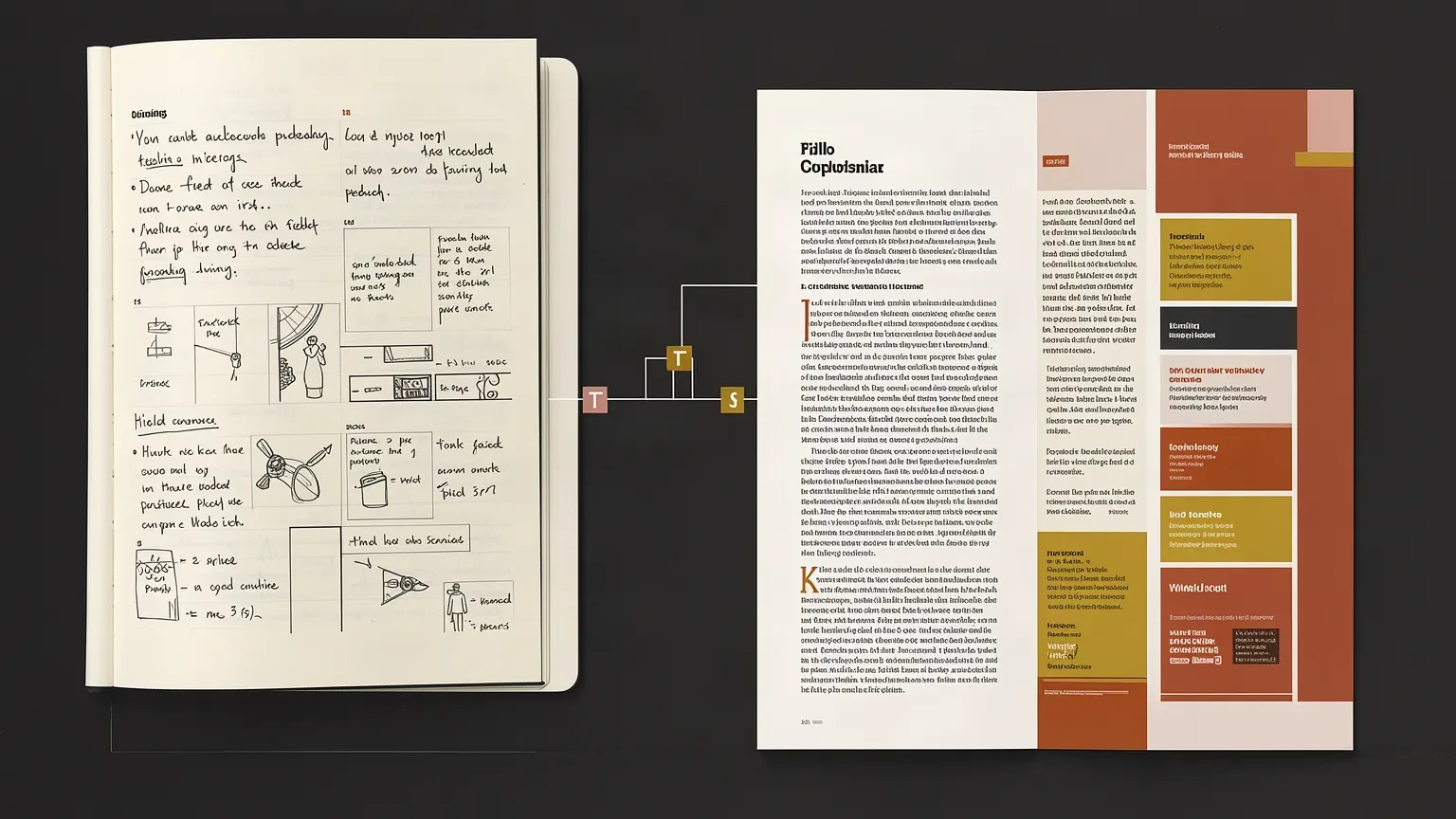
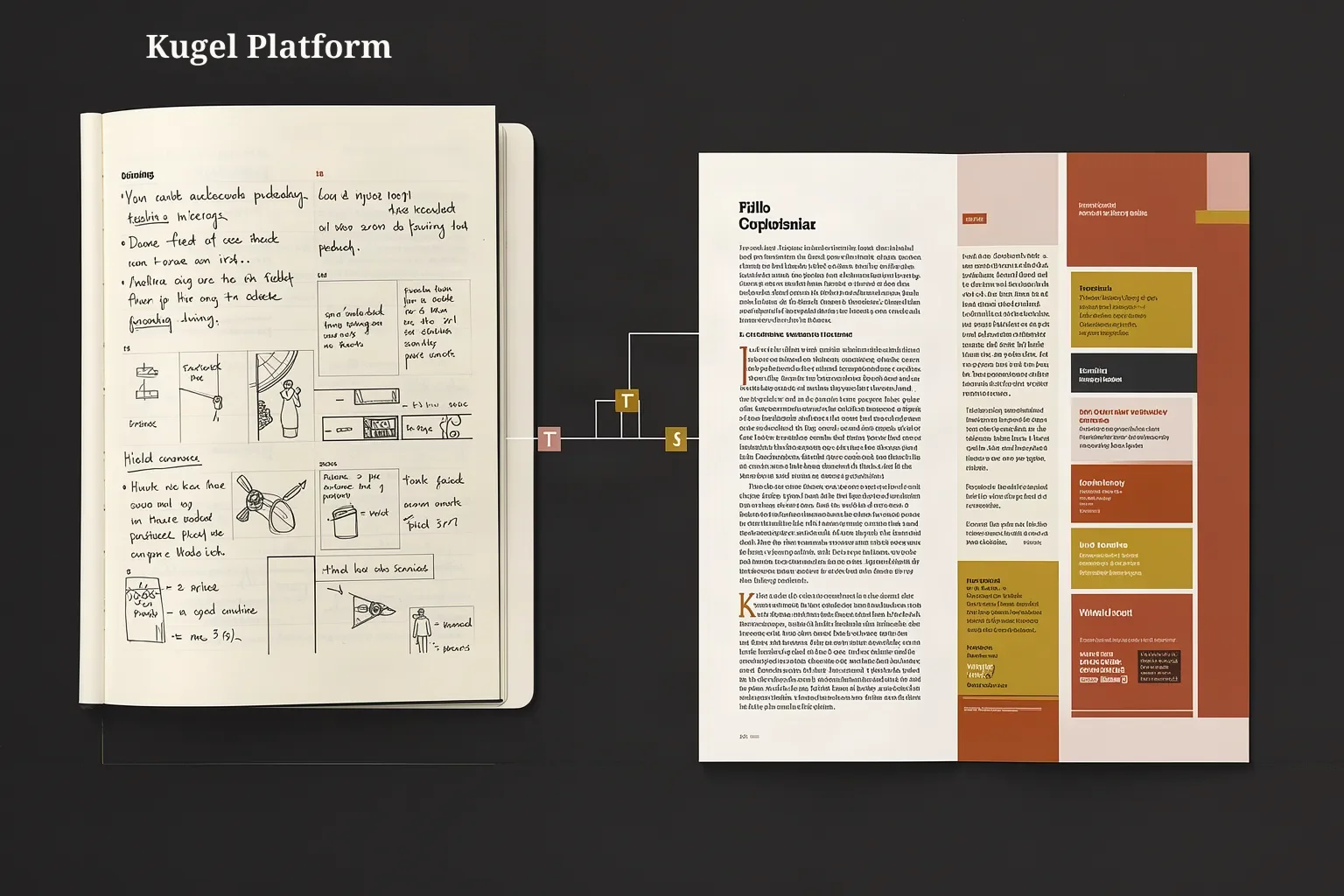
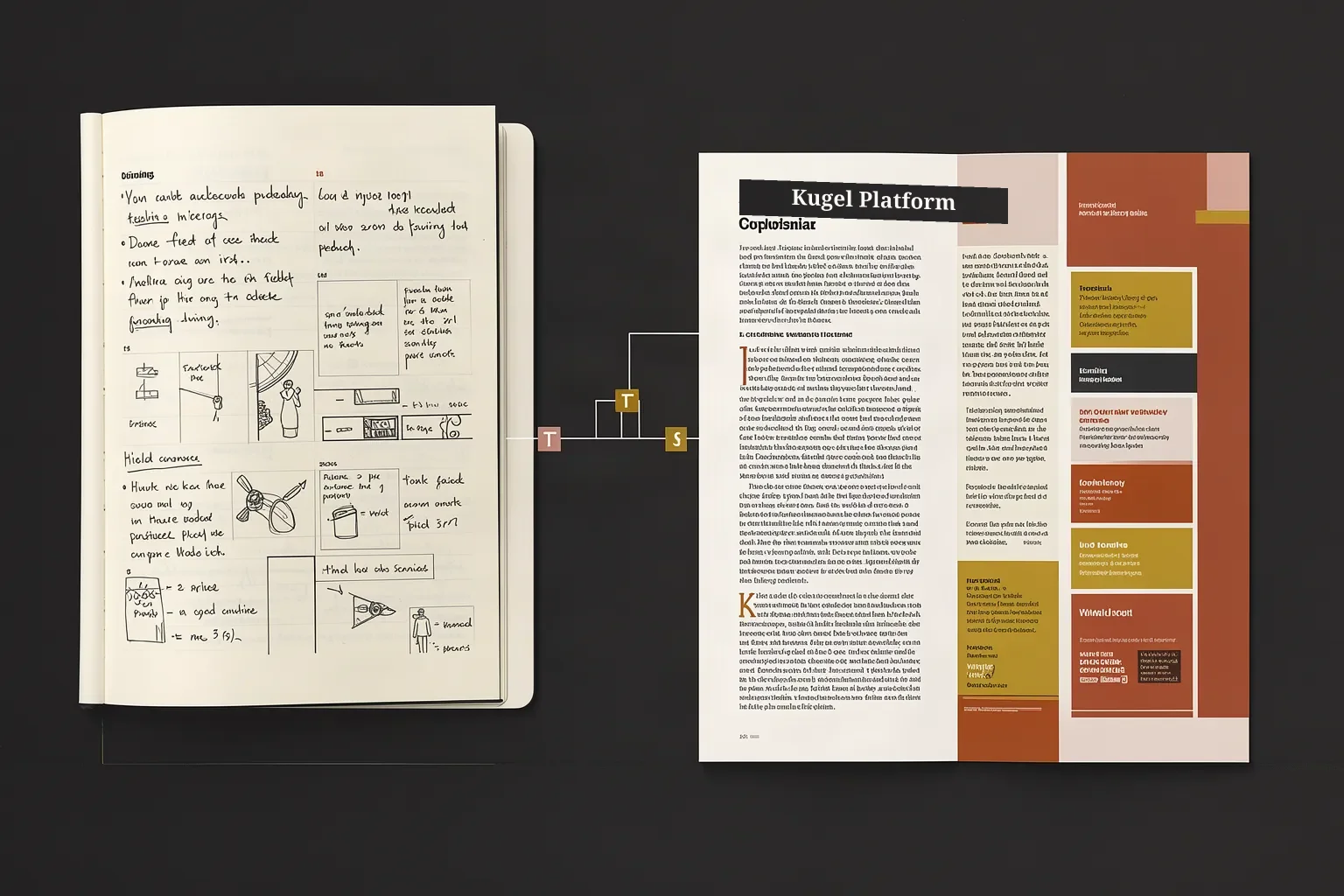
The subject is this site's home image: a handwritten notebook on the left and a typeset article spread on the right, joined by a thin line, on a near-black ground. The target is the site's brand palette, eight colours stored with its imagery rules: three near-black browns, two off-whites, terracotta (#cc785c), gold (#bf9b30) and a muted grey-brown.
Called without a palette, the tool lists the image's five dominant colours and returns not_evaluated. It does not look up the site's colours itself, so whoever calls it supplies them. Called with the palette, each dominant colour is matched to its nearest brand colour and the distance is reported.
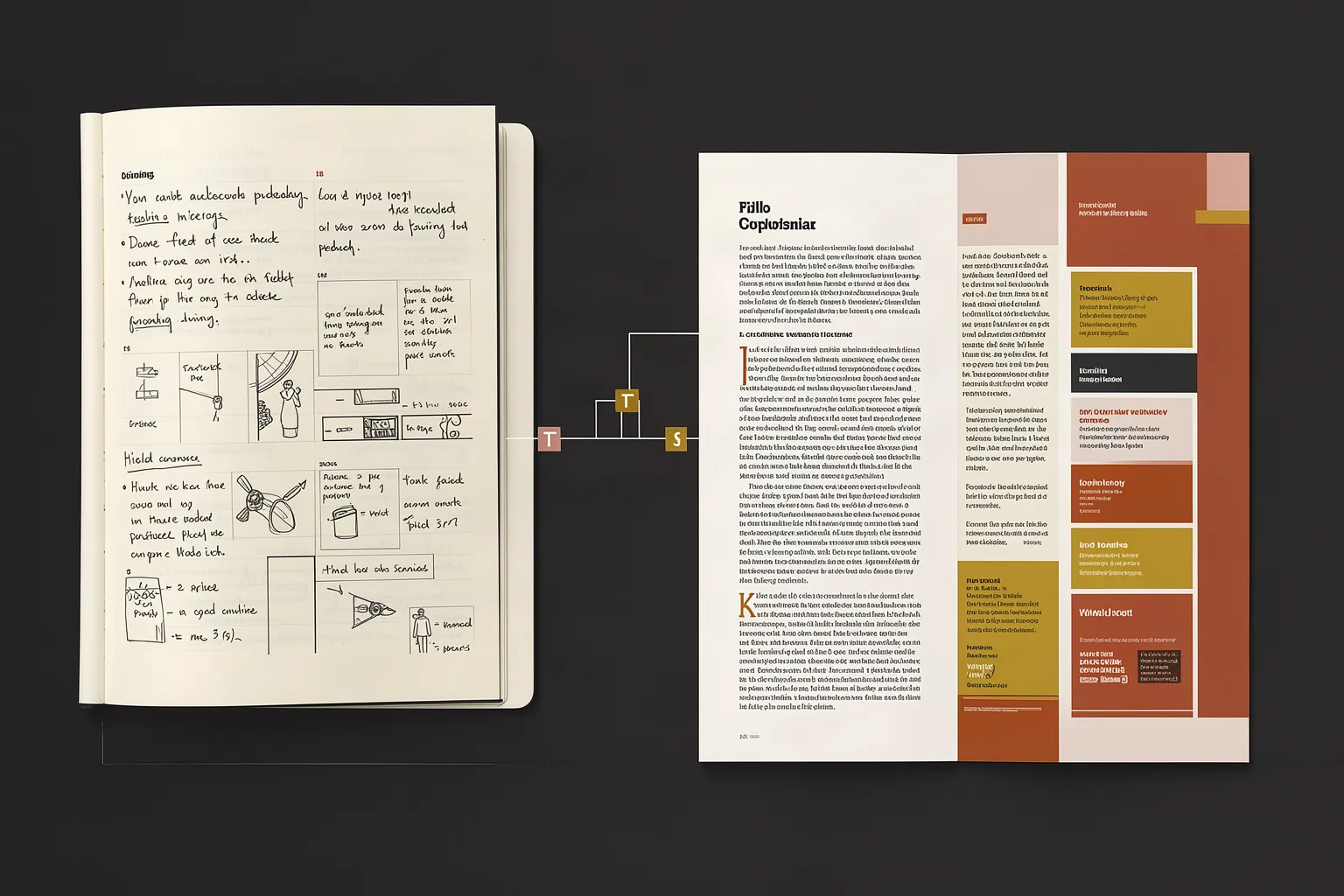
The weighted mean distance was 5.41 and the worst single colour 12.45, both inside the defaults of 10 and 20, so the status is pass. The three largest groups are within 4.8 of the brand's near-blacks and off-whites. The two largest gaps are the pale grey #ccc3b5 (11.35) and the terracotta of the magazine spread (12.45 from #cc785c).
The same image under other conditions:
The site stores two terracotta values. Its imagery palette holds #cc785c, and its theme's primary colour is #a8563a (rgb 168 86 58). Against the theme's terracotta the brown group sits 8.35 away instead of 12.45, and the worst case moves to the pale grey at 11.35. Neither palette is wrong. Choose the one that matches what you want to enforce, and say which one you used when you report the result.
The tightened run shows how limits change the verdict on the same image. The numbers barely moved (mean 5.45, worst 15.27), but both are now over the new limits of 4 and 8, and 84.2% of the image's colour lay within the 8-unit limit. The blue duotone is the clear failure: its five dominant colours were each between 23 and 28 away from the nearest brand colour.
Example 2
Contrast: can text be read over this part of the image?
Before text goes on an image, measure the part of the image behind it. The check samples the pixels inside the rectangle you name, works out the contrast ratio against the 10th, 50th and 90th percentile of the background's brightness, and compares the worst of the three with the limit. The default limit is 4.5, the usual WCAG 2 figure for normal-size text.
We tested the page's cream (#faf9f5) as the text colour in two regions of the home image. Region 1 is the dark strip at the top left. Region 2 is a pale patch of the magazine page. The figure marks both regions and states the results. Its labels were checked with check_image_text, which found all five strings we expected.
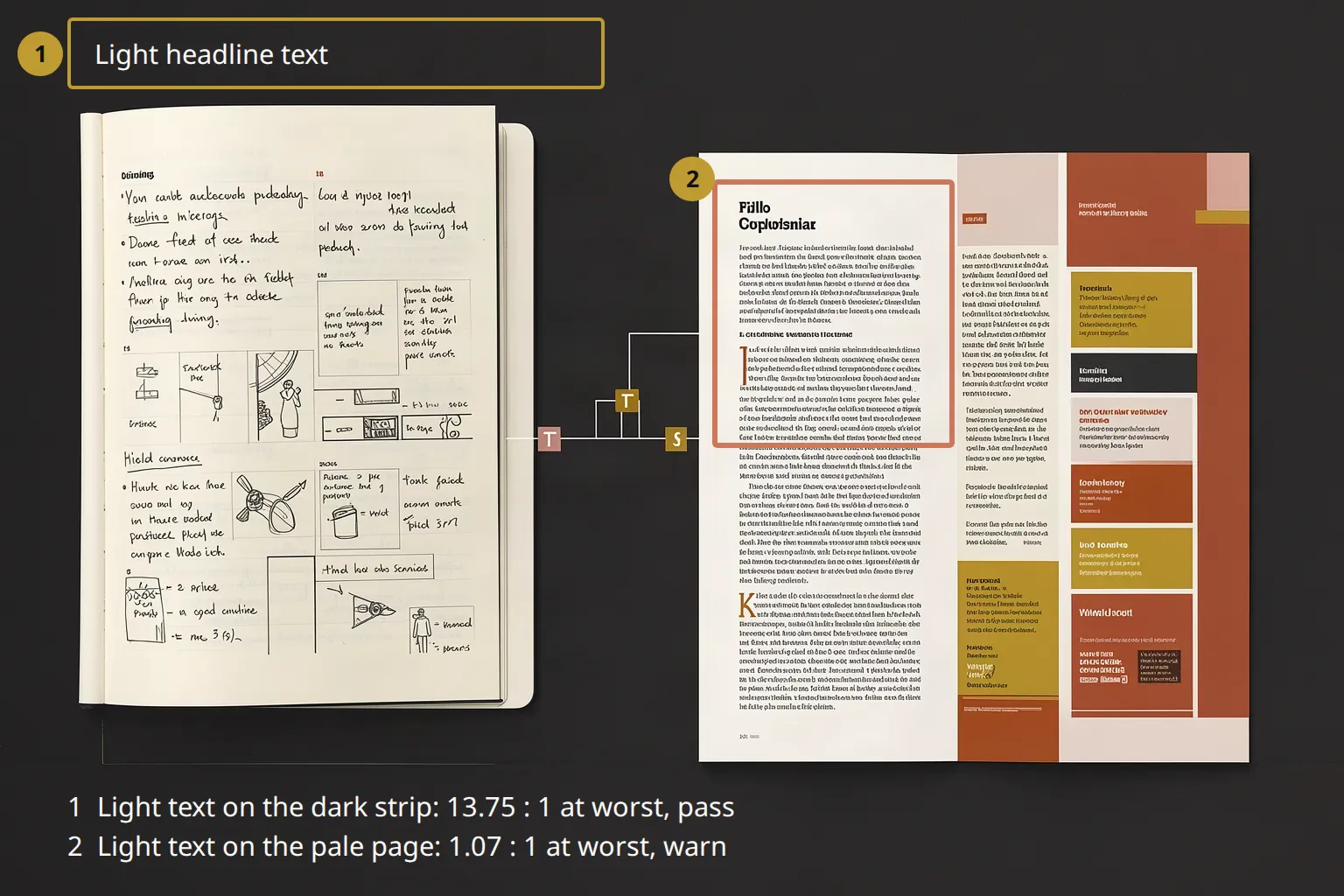
The worst case, not the average, is compared with the limit, because text crosses both the brightest and the darkest parts of its background. On the pale page the darker pixels gave 2.40, the median 1.12 and the brightest 1.07, and 1.07 is the number that counts. The dark strip was uniform: 14.60, 14.09 and 13.75.
With a named background colour no pixels are sampled, which makes the check a quick test of brand colour pairs. Terracotta text on the page colour passes with little room (4.91 against 4.5), and gold text on the page colour measures 2.51, so at default limits it warns. At a limit of 7, gold on the dark strip (5.48 at worst) is a warn; at the default of 4.5 it would pass. A higher bar is a deliberate choice, for small or important text.
The check reads colour and brightness only. It cannot tell whether the region behind the text is a face, and it cannot tell whether lettering is legible. That is the job of check_image_text.
Example 3
Similarity: is this a near-duplicate, or did the edit change too much?
Similarity answers two questions: is this image a near-duplicate of that one, and did an edit preserve the original? The reference was the home image. We made variants with deterministic edits that cost nothing (resize, blur, re-encode, brighten, recolour) and added two images that are different pictures: the first generated candidate for the same brief, and an unrelated square comic panel from another article, which the comparison adopted into this request by naming its source.
SSIM compares structure on a 256 by 256 grey copy, where 1.0 is identical. The pHash distance counts the bits that differ in a 64-bit fingerprint, where 0 is identical. The defaults are SSIM at least 0.9 and distance at most 10.
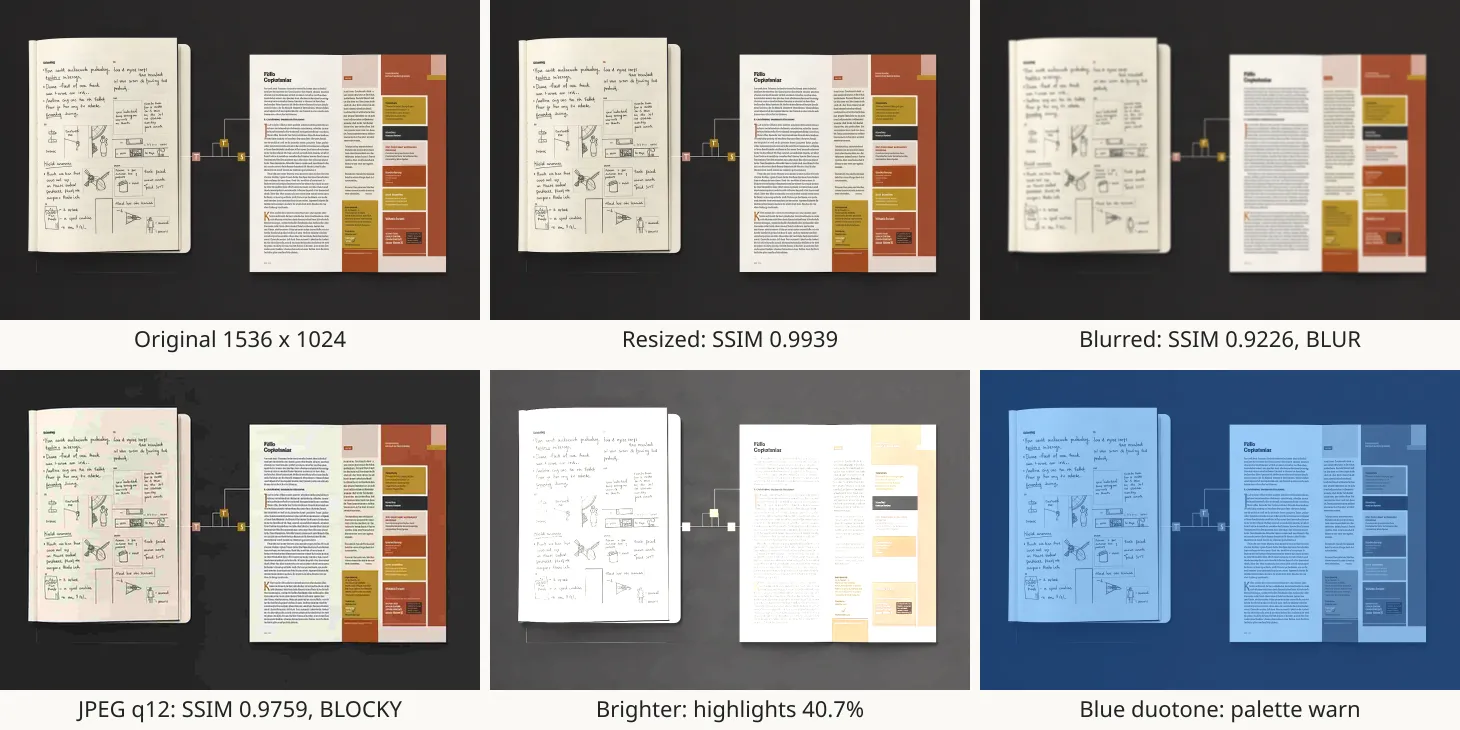
Three results are worth reading closely. The blurred copy passed, with SSIM 0.9226: similarity tolerates softening, so blur is caught by the quality check in Example 4, not here. The blue recolour warned on SSIM alone (0.8877) while its fingerprint was 2 bits from the original: the structure is the same and the colours are not, which is the palette check's job. And a different picture generated from the same brief scored 0.3478 and 18, well outside both limits, so images made from one brief are not duplicates of each other.
Pixel difference is stricter. It counts the pixels whose colour differs by more than a sensitivity of 0.1 (in the YIQ colour space) and warns when more than 1% of the image differs. Use it to prove that a deterministic re-render or an edit changed only what it should.
Two cautions. The resized copy warned although only 0.27% of its pixels differed, well under 1%. The one other thing the report flagged was that the sizes did not match (dimensions_match: false), and the tool resampled the reference to the subject's size before comparing. Treat a size mismatch as a warn in its own right.
The 16:9 crop is a worse case. Cropping moves every pixel, and the tool compared the crop with a rescaled copy of the whole image, so 22.65% says nothing about the crop's quality. Use pixel difference on images of the same size, such as a regression check after a re-render, and use similarity for everything else.
Example 4
Quality: is the image sharp, clean and large enough?
The quality check reports facts about the file itself: sharpness as the variance of the Laplacian (the higher, the more fine detail), noise as an estimated sigma, the share of pixels clipped to pure black or white, whether the frame is blank, whether the image is large enough for a target size and, for JPEG files, how pronounced the 8 by 8 compression blocks are. Unlike the palette check, it names the limit that tripped, with the measured value and the threshold.
Each warning carries a code, the measured value and the limit. The blur warning read "Laplacian variance is below the sharpness threshold", 5.571 against 100. The highlight warning read "40.7% of pixels are at luma >= 253", against 5. The JPEG warning read "JPEG 8x8 block boundaries are more pronounced than the interior (compression blockiness)", 1.408 against 1.35. The low-resolution warning read "Source is 40% of the required pixels on its tightest axis; 2.5x upscale needed." Blockiness is evaluated only for JPEG files, so on the WebP originals it comes back not_evaluated, and resolution stays not_evaluated until you give a target.
Limits are yours to tighten. Setting the sharpness floor to 5,000 and the noise ceiling to 2 turned the original's pass into two warnings: BLUR at 4,027 against 5,000, and NOISY at 2.77 against 2. Whether that is the right bar depends on the image's job.
One gap to know about: the darkened copy passed every check. The exposure checks look for clipped pixels, not for an image that is simply dim, so a dim image needs a person's eye or a look at the brightness in the report (an average of 36 on a 0 to 255 scale here, against 119 for the original).
Example 5
Geometry and safe zone: does it fit the slot, and is there room for text?
Geometry compares an image's size and proportions with what a slot expects. This site's imagery rules set 16:9 for article headers and 4:3 for article bodies. With no expectations the check has no verdict and returns the facts: the home image is 1536 by 1024 pixels (3:2, landscape, 1.57 megapixels, WebP, 114,460 bytes). Given the header slot's expectations, 16:9 and at least 1,200 pixels wide, it warns on the ratio and passes the width. Cropped to 16:9 it passes. That crop is the header image of this article.
The report lists each check with its expected value, the actual value and whether it passed. The warn above reads: aspect ratio expected 1.7778, actual 1.5, not passed; minimum width expected 1200, actual 1536, passed. The default tolerance on the ratio is 1%, relative.
The safe-zone check reads how busy named rectangles are. A zone is a rectangle given as fractions of the image, or a block of cells on a grid, 6 by 6 by default, with columns A to F and rows 1 to 6; A2:B5 is the left third of the image, rows 2 to 5. For each zone it reports the edge density, the share of the zone's small cells that are quiet, and any placed box (a headline, a logo, a button) whose rectangle overlaps it. At default limits a zone passes when its edge density is at most 0.1, at least 90% of its cells are quiet and nothing overlaps it.
The strip is the quiet area of the image: a flat dark ground and nothing else. The two page zones are busy, with handwriting and set type. Both exceed the edge limit and fall short of the quiet-cell floor, and the report names the screen that failed (quiet cells, 0.5781 against 0.9, for the notebook page).
The result depends on what you ask. The same title strip passed when measured alone and warned when a headline box was placed over it, because at the default limit of 0 any overlap is a collision. The zone's status is a single warn either way, so read the collisions list and the failed screen to see which it was. Because any overlap counts, declare placed boxes only for things that must stay out of a zone. To check that a zone is quiet enough for text, declare the zone alone and read its quiet cells.
Example 6
Logo placement: is the logo still intact where it was placed?
When project_planar_decal places a logo on an image, it returns a transform: the exact position and distortion it applied. verify_logo_placement takes that transform, cuts the same region out of the finished image and compares it with the original logo file on four measures: geometry similarity, colour distance, edge overlap and pHash distance. It is read-only and can be run again at any time, for example after another edit.
A note on the logo itself. This site's logo is its name as text, and no logo image file is stored. The logo in these examples is a stand-in: the words Kugel Platform rendered as word art in the site's cream on a dark tile cut from the home image. The measurement works the same way with a real logo file, which can be named by the request that owns it.
The sheared placement tilts the logo slightly over the magazine page. Its geometry similarity was 0.8467, narrowly under the default of 0.85, so we ran the check with the limit lowered to 0.8 to see the rest of the picture. At the default the placement step's own check had already recorded it as a warn. The tool's guidance is to treat a geometry similarity below 0.9 as a reason to place the logo again.
A warn here has two causes: the logo is distorted, or the check looked in the wrong place. The first and fourth rows show the difference, because the same flat image passes at its own position and fails at another. All four runs reported text_verified as not_evaluated. The tool takes no expected text, so confirm lettering with check_image_text.
Boundary
Warnings and failure modes
What the checks reported, and refused, during the runs behind this article:
Wrong request. A measurement reads only images indexed under the request it is called for. Naming an image that is not indexed there came back as: "No artifact with sha256 ... is indexed for request ...". Adopt the image first. adopt_artifact needs the full 64-character hash: a shortened hash with a wildcard was refused with "Name the source artifact with blobKey, or source_request_id + sha256."
Values are validated. A colour name instead of a hex colour came back as "foreground must be a #rgb/#rrggbb colour". A grid cell that does not exist came back as "cell "H9" is outside the 6x6 grid (columns A..F, rows 1..6)". Limits outside their allowed range are refused, as shown under Settings and limits.
A named background still needs an image. A contrast check with a background colour and no image came back as "Name the image artifact with public_path ... or with sha256 ... At least one is required." Name any image from the request; the background colour is then used instead of sampling the image.
Some reports give only a status. Palette, similarity and pixel difference return the numbers but not which limit was missed, so compare them with the limits in the tables above. Quality names the code, value and threshold. Safe zone names the screen that failed.
Size mismatches warn. Pixel difference warns when the two images differ in size, whatever the share of differing pixels, and it is not meaningful for crops.
Dim images pass. The exposure checks look for clipped pixels, so a uniformly dark image passes them.
Pixels, not meaning. The home image's page text is generated lettering that is not real words, and every check treated it as ordinary detail. Whether lettering is legible is a question for check_image_text, which matched all five labels we expected on the annotated figure.
Boundary
What the measurements do not decide
They do not decide whether an image persuades, suits the article or deserves publishing. A pass is evidence about the file, not about the page. They repair nothing and block nothing: the status is a report.
Not verified for this article: how the admin chat phrases these requests to an editor; the effect of changing the site's stored image-analysis policy, which we read and did not change; the refusal for an image from another article that was never adopted, beyond the missing-index message quoted above; and behaviour on PDF pages, which the tools accept as a subject but we did not exercise.
The next safe operation is to run one of these checks on an image already attached to an article. All eight are read-only, so nothing changes if the result is not what you expected.
Related reading
Related reading
How Images Are Found, Made and Checked: search, generation, repair, storage addresses and the size budget.
How an artifact is made: from brief to published image: the life of one image from request to page.
Downloadable PDFs: Turning Platform Content Into a Document: the same tools accept a page of a PDF as the subject, which we did not exercise here.
What Actually Needs AI in This System (and What Doesn't): these measurements are the rule-based kind.
Other articles in this series on images and PDFs:
Download any article as a PDF: templates, kinds and the quality check
Labels, arrows and callouts on images: annotating without a designer
One image, every screen: resizing, smart crops, splits and layouts
Editing PDFs without a designer: page numbers, watermarks, merging, text and forms
Finding and importing stock images: search, shortlist, licence and attribution
AI images in your site's own style: brand imagery, routing, candidates and edits