Download any article as a PDF: templates, kinds and the quality check
A reference for render_article_pdf: the template and kind system, the quality check that warns but never blocks, and tools for inspecting and previewing a PDF.
16 min read By Platform Documentation Guide #Publishing #Architecture
Outcome
A PDF of any article, from one request
Readers print, save and forward documents. A governed article on this site can become one. Ask for its PDF and the platform lays the article's own title, sections, pictures and sources onto a template the site owns, then attaches the finished file to the article.
Nobody writes the PDF by hand. The article's content is mapped onto the template by fixed rules, so the same article and the same template give the same document each time.
This article explains what the request does, how a site decides which template a document uses, and what the quality check reports. It also shows the real documents and page previews that were produced while it was written.
Core terms
Four terms to know
Each term below is used the same way for the rest of the article.
- Template: a layout with named slots, stored and versioned by the artifact foundry. It is not a site object, so it is read with the template tools, not the object tools.
- Kind: the type of document being made, such as article, lead_magnet or sales_brochure. A site can pin a different template to each kind.
- Receipt: the answer the render call returns. It names the PDF, its page count, any quality findings, and everything the article had no content for.
- Quality check: a read of the finished PDF for blank pages, unresolved images and leftover template tokens. It warns. It does not block.
Relationship
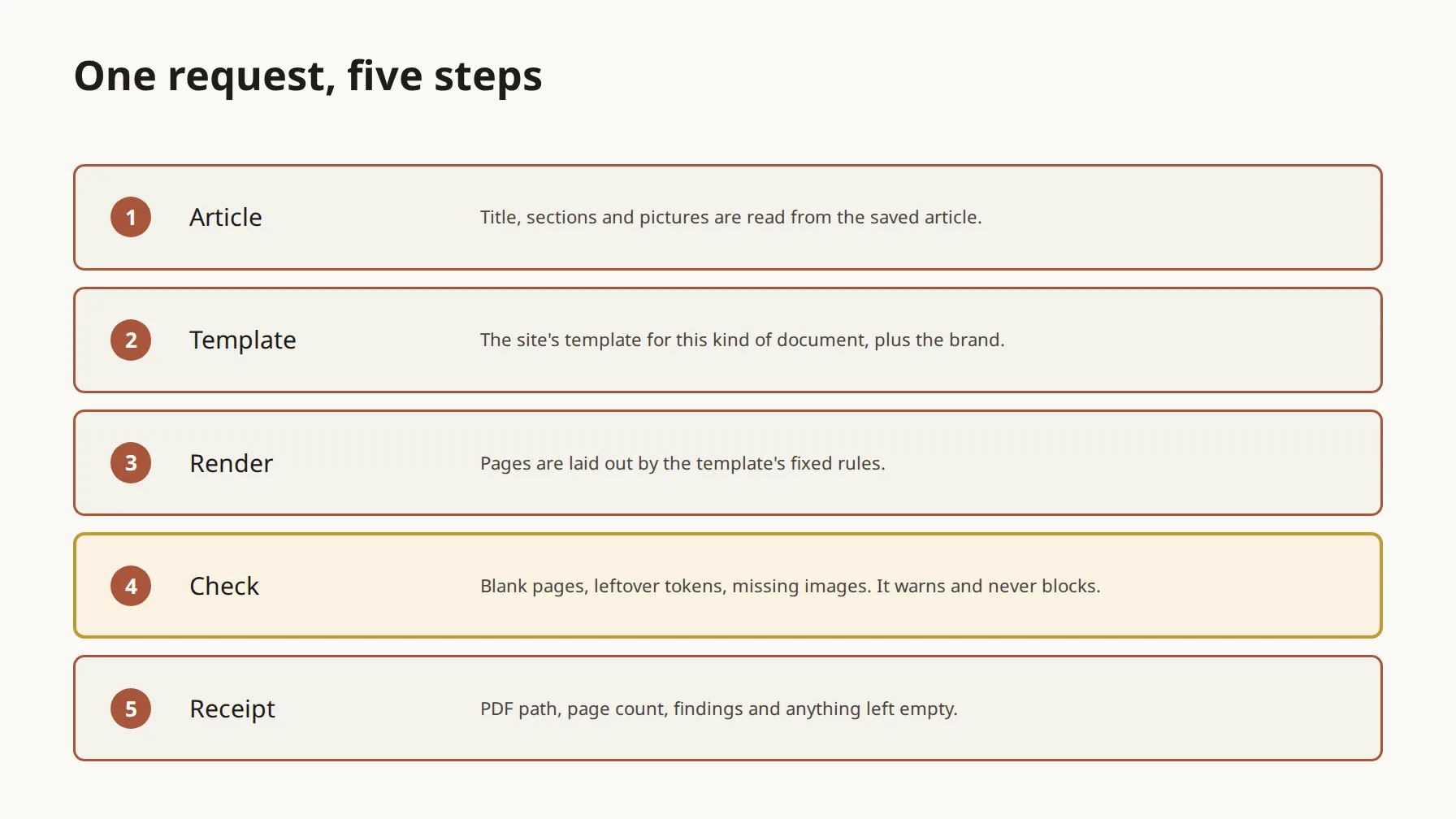
Five steps behind one request
The picture at the top of this article shows the order. One call to render_article_pdf runs all five steps and returns one receipt.
The PDF is built from the saved article, so an edit that has not been saved is not in the document. The finished file is attached to the article as a download unless the request says otherwise.
- Read the article. Title, deck, sections, pictures and sources are mapped onto the slots the template declares. Whatever the article has no content for is listed in the receipt as unfilled. It is not invented.
- Choose the template. A request can name one. If it does not, the site's template for the document's kind is used, and if the site has none for that kind, the site's default.
- Add the brand. The site's colours are placed into the template for you. A value passed in the request always wins.
- Render. The template's layout engine places the content on pages by fixed rules. Two completed renders on 2026-10-15 took about 5 seconds each from request to stored file.
- Check and report. The finished PDF is read for blank pages, unresolved images and leftover template tokens. Findings go into the receipt. They do not stop the file being stored.
How to use
How to ask for a PDF
In the admin chat an editor asks in ordinary words, for example: make a PDF of this article. The chat does not show tool names or ids. It reports the outcome in plain language: that the PDF was made, how many pages it has, and any problem found in it. The chat agent describes the site's PDF setting as the site's default template.
We did not drive the admin chat end to end while writing this article. What an editor sees is described from the agent's definition and the platform's guidance on 2026-10-15, so the exact wording of its replies is unverified.
An agent working through the tools follows this order.
- Save the article. The PDF is built from the saved version.
- Optional: call build_pdf_render_data to preview what will be mapped and what will be unfilled. It creates no file.
- Call render_article_pdf with the site and the article. Leave the template out unless the editor asked for one. Set attach to false to try a render without touching the article.
- Read the receipt: status, public path, quality findings and unfilled slots. A render with findings is not a failed render. Report the findings plainly.
- To look closer, call inspect_pdf_artifact for structure and per-page text length, then rasterize_pdf_artifact to turn a page into a picture, and look at the picture.
- To change the outcome, edit the article and render again. A PDF is a snapshot of the saved article at the moment of the request.
Example 1
The first render, with no hero image
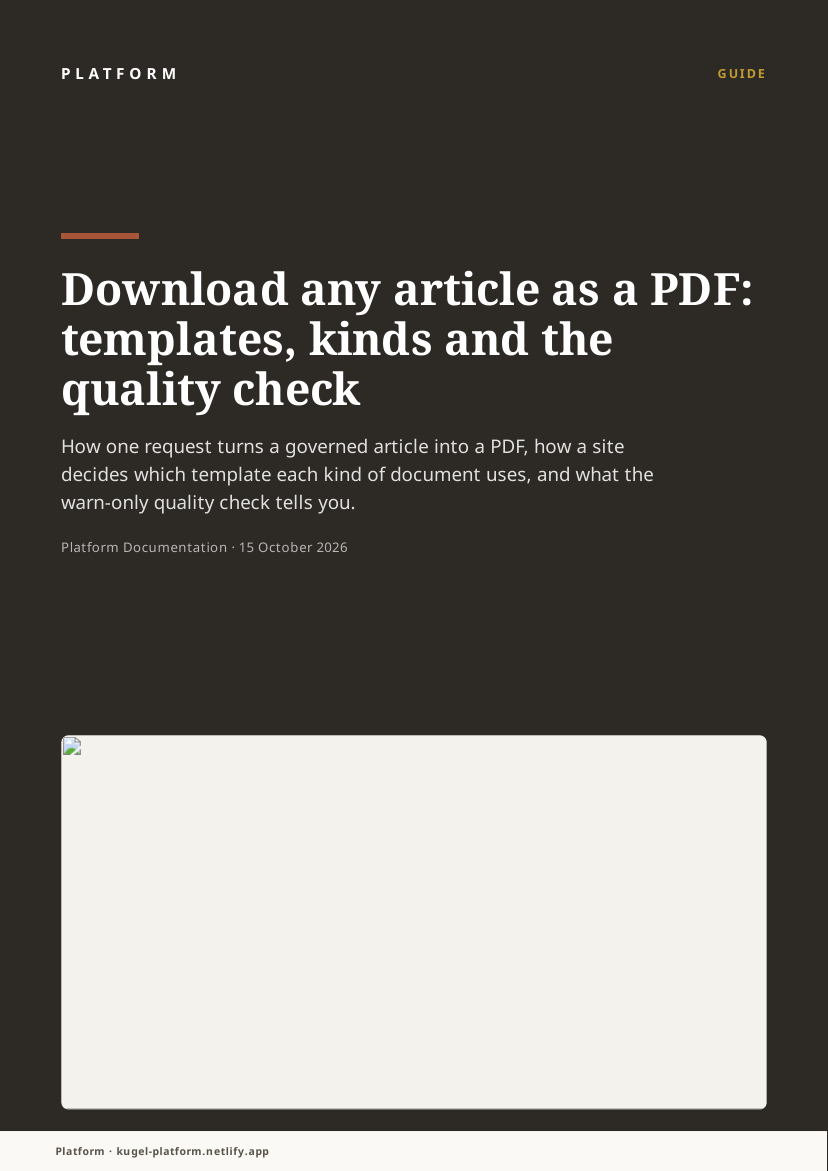
We asked for a PDF of this article while it was a short draft with no hero image. The request used attach set to false, so the article itself was not changed. The receipt carried one quality finding, UNRESOLVED_IMAGE. The file has 2 pages and 22,405 bytes.
The page preview below is page 1 of that file. The cover has an empty pale box where a picture should be, with the broken-image mark in its corner. That box is what the finding points at.
The inspection tool reported this file as clean, and so did verify_pdf_content. Both look for blank pages and leftover tokens. For a missing cover picture, rely on the render receipt, or look at the page.
The file is stored now: open the first draft PDF. The link works once the site is released.
Example 1, continued
The same article with a hero image
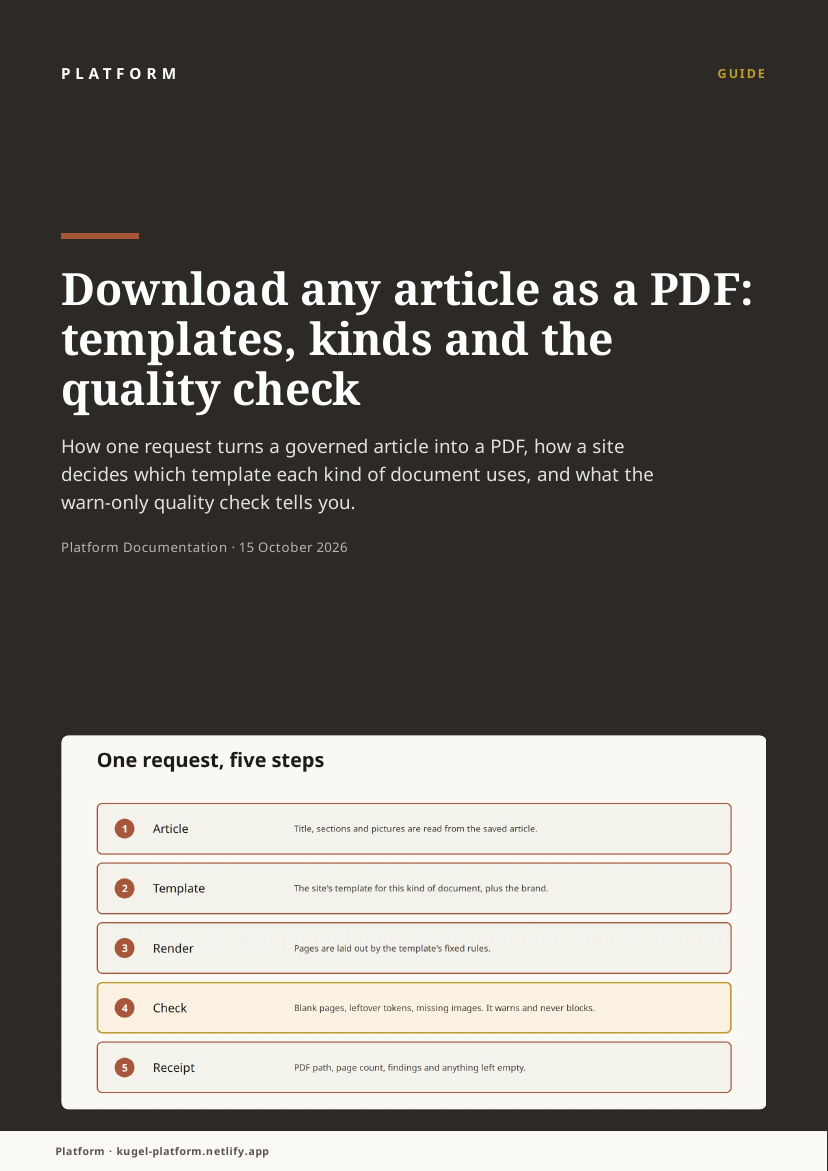
Adding a hero image to the article sets the PDF's cover picture. We rendered again, still with attach set to false. The receipt reported the quality check as passed, with no findings, and one unfilled slot: pullQuotes, because the article has no pull quotes. At that point the article had two sections, so the file had 2 pages and 290,952 bytes. The larger size is the picture.
The cover now carries the picture that opens this article. The file also recorded the requirements an article render is held to by default: A4, portrait, at least 2 pages. Later renders of the finished article are longer.
Example 2
A lead-magnet document from a stored template
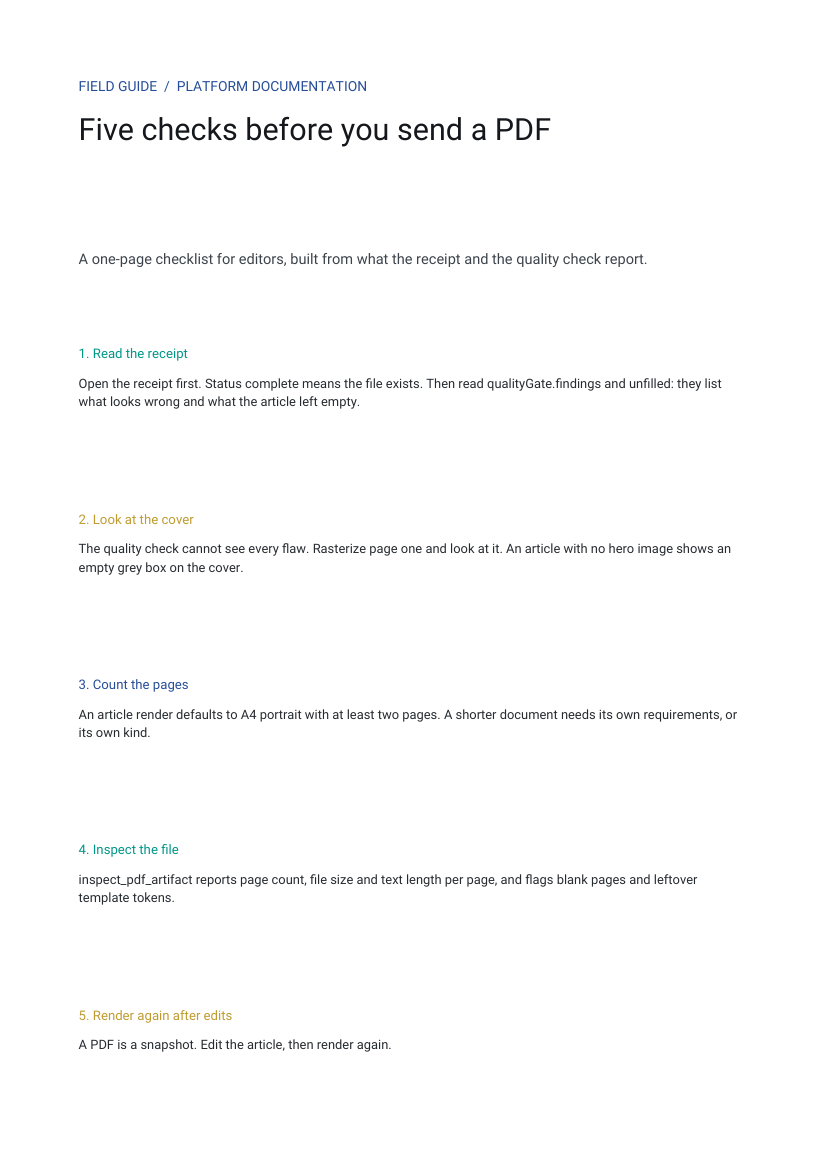
A lead magnet is a short document a site gives away, such as a checklist. Here the kind is lead_magnet, so the render is not held to the article rules. We named a stored template, a one-page field guide in the site's colours, and supplied its five short passages of text ourselves.
The result is 1 page and 9,088 bytes. A later check with verify_pdf_content reported it as ok. The same check with a minimum of 3 pages and a maximum of 5,000 bytes reported it as failed, with the reason: Only 1 page(s); at least 3 required. PDF is 9088 bytes, exceeding the 5000-byte limit.
Two details matter. This site has no per-kind template set, so the template had to be named in the request. And a field-guide layout has fixed positions: it cannot grow to a second page, which is why the preview tool, which applies the article defaults, refused it (see the end of this article).
The file is stored now: open the lead-magnet PDF. The link works once the site is released.
Example 3
A finding you can see, and a hard stop you can choose
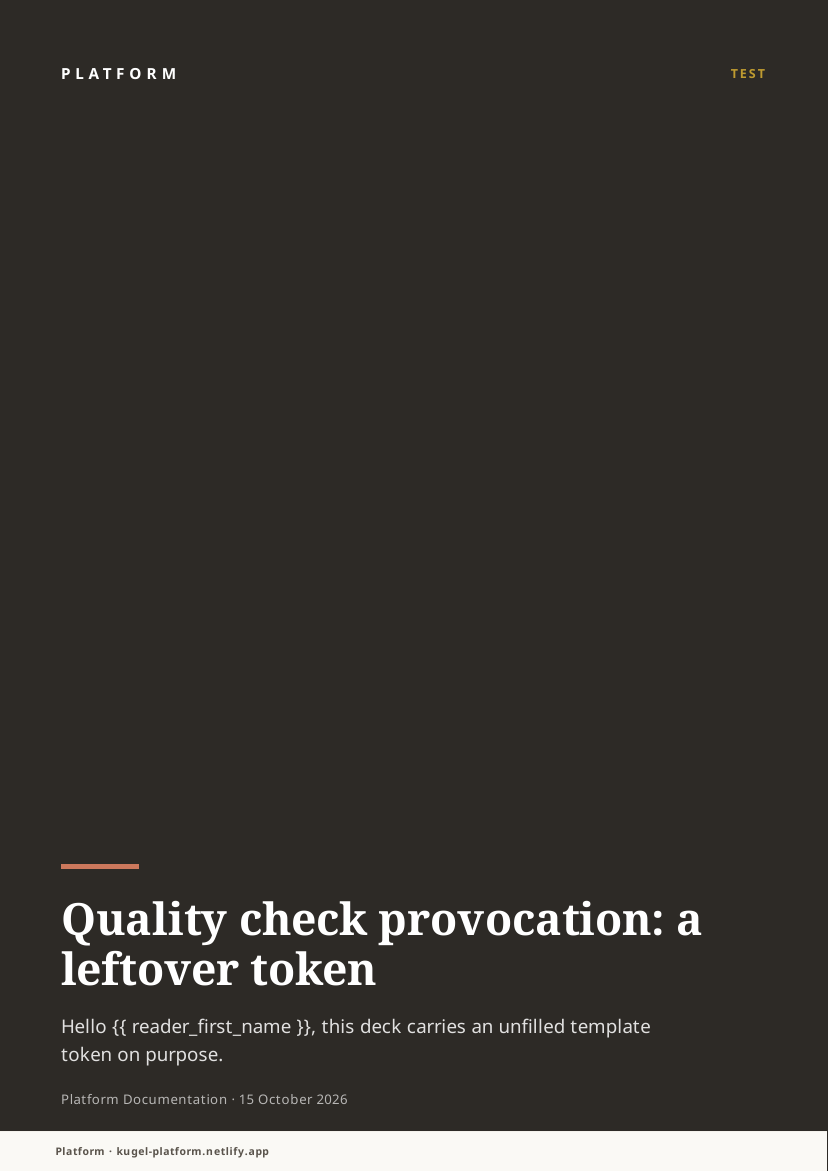
To watch the quality check work, we rendered a document on purpose with an unfilled template slot in its deck: Hello {{ reader_first_name }}. It rendered, and the receipt came back with one finding, UNRENDERED_TOKEN on page 1, with this message: Page 1 contains an unrendered template delimiter ("{{" or "}}"): a placeholder survived into the output instead of being replaced. The file was stored anyway, as the warn-only policy says. The job's warning read: the artifact was stored anyway per the warn-only content policy.
We then sent the same request with fail_on_quality_gate set to true. The job failed with the code PDF_QUALITY_GATE. Its message said that no artifact was stored, and the finding was the same. Use this switch for an automated path that must never attach a flawed PDF unattended. An editor working in the chat does not need it.
The quality check
What the quality check reports
The check reads the finished PDF. By default it warns: a PDF with findings is still stored and, when attach is on, still attached. The findings travel in the receipt.
It looks for three things. It does not judge whether the words are right, and it does not compare the PDF with the article. The inspection and verification tools run the blank-page and leftover-token checks, but in our tests only the render receipt reported an unresolved picture.
The article's own readiness check carries the same finding once a PDF is attached. When this article was saved with its PDF attached, the report held a warning with the label pdf_quality: The attached PDF's content did not pass inspection: 2 unrendered template token or leaked values (pages 7, 8). It added that this never blocks publish or release, and the article stayed eligible.
- BLANK_PAGE: a page has no readable text. We did not trigger it, so its wording here is unverified. Look for an empty section, or a layout that pushed content onto an extra page.
- UNRESOLVED_IMAGE: seen on 2026-10-15 as: An image reference could not be resolved during the render; the engine diagnostic names no asset id. The receipt also warned that no asset with an empty name was supplied. On the article template the cause was an article with no hero image. Add one and render again.
- UNRENDERED_TOKEN: seen as: Page 1 contains an unrendered template delimiter ("{{" or "}}"): a placeholder survived into the output instead of being replaced. The cause is article text containing double curly braces, or a template slot nobody filled. Fix the text and render again.
Settings and limits
What a site can set, and where
Values below were read on 2026-10-15. Where a value comes from a tool's own description and was not observed, the text says so.
- Template choice, in order: the template named in the request, then the site's template for the kind (site.pdf.byKind, with article, lead_magnet and sales_brochure as the seeded kinds), then the site's default (site.pdf.defaultTemplateId). Read on 2026-10-15: this site has a default and no per-kind templates. Tested: a request with kind lead_magnet and no template named used the article template. Changing a site's PDF settings is a site-level change that belongs to the site owner.
- Default requirements for kind article, recorded on a finished file on 2026-10-15: A4, portrait, at least 2 pages. The tool's description also names an 8 MB ceiling; the recorded requirements did not show one. Other kinds carry no default requirements: a lead_magnet render recorded an empty list.
- Requirements you set yourself replace the defaults. A ceiling of 5,000 bytes on this article's PDF, which was 22,405 bytes at the time, failed with PDF_REQ_MAX_BYTES: Rendered PDF (22405 bytes) exceeds maxOutputBytes (5000 bytes). No file was stored.
- A page-count floor that is not met fails with PDF_REQ_PAGE_COUNT_MIN: Rendered PDF page count is below minimum. We saw it when a one-page layout was previewed under the article defaults.
- Strict or lenient binding. By default a slot the data leaves out fails the render with DATA_BINDING_ERROR, as the tool describes; we did not trigger it. Setting lenient to true lets the slot render empty with a warning.
- Hard stop on findings. fail_on_quality_gate is off by default. Set it to true on a request to turn findings into a failed render.
- Brand. For templates that declare a brand slot, the site's colours and fonts are supplied automatically, and get_pdf_render_brand shows exactly what would be supplied without rendering. A brand passed in the request wins. The article template used here sets its own fonts, so the site's font stacks do not change its look.
- Pictures. The site's image policy asks for webp and at most 153,600 bytes per image, as read on 2026-10-15. A page preview made at 100 dpi came to 59,712 bytes for a cover and 161,920 bytes for a text-heavy page, which is over that budget. rasterize_pdf_artifact accepts 72 to 150 dpi and up to 40 pages per call.
- PDF editing tools. The site's PDF operations policy, read on 2026-10-15 with source default, allows 200 pages per call, 20 files in a merge, 150 dpi for optimisation, and text recognition in English, Hebrew and Arabic. These limits belong to the editing tools, not to rendering an article. set_pdf_ops_policy changes them.
- Write limit. A member may make 60 write calls in 10 minutes, and renders, page previews and image jobs count towards it. At the limit a call is refused with a message like: Write rate limit: 60 writes per 10 minutes, per member. Wait 217s and try again. Wait the stated time, then repeat the call.
Tools
Reading a PDF without opening it
Five tools let an agent, or an editor working with one, look at a PDF before anyone downloads it.
- inspect_pdf_artifact: page count, format, size and per-page text length, with the blank-page and leftover-token checks. It never returns the text itself.
- verify_pdf_content: the same checks with an optional minimum page count and maximum size. It answers ok, failed or unverified, with a reason.
- rasterize_pdf_artifact: turns pages into images stored under the same request, so you can look at them or embed them. The page previews in this article were made this way.
- build_pdf_render_data and validate_pdf_render_data: preview what a template would receive, and dry-check it, without rendering.
- preview_pdf_template_fixture: renders a stored template against one of six worst-case fixtures (long, short, empty, rich_text, rtl, images). The next section says what happened.
Known gaps
What did not match the descriptions on 2026-10-15
These are dated observations from the calls made while writing this article. Each one names what was seen. Anything we could not reproduce is marked unverified.
- Worst-case fixtures did not render on the article template. The short fixture stopped at preflight with status invalid_fixture and three errors: /brand must have required property 'fonts', and /sections/0/figures and /sections/1/figures must NOT have more than 1 items, plus a missing asset named sections-fig. The long fixture stopped the same way with more than forty errors, nearly all length limits, such as the title having more than 200 characters. No render was attempted in either case. The fixtures are built to exceed a template's limits, and this template declares strict ones.
- A one-page template could not be previewed either. The long fixture on the one-page field-guide template passed preflight, then failed with PDF_REQ_PAGE_COUNT_MIN: Rendered PDF page count is below minimum. The preview tool accepts no kind or requirements, so it applies the article defaults. We ran only long and short on the article template and long on the field guide. The other four fixtures were not run, so how they behave is unverified.
- A stored seven-page template failed to render at all. Rendering the stored sample catalogue, a layout of rectangles, text and tables, with empty data failed with RENDER_ENGINE_ERROR: pdfme generate failed: `options.start.x` must be of type `number`, but was actually of type `NaN`. The same error came back with lenient set to true, and with minimal table data. Because no render of that kind succeeded, we could not check the reported quirk that rectangles and lines draw correctly but add an N template field(s) rendered empty warning. That quirk is unverified.
- A missing cover picture is invisible to the inspection tools, as Example 1 shows. Our reading of the cause, supported by one test: when an article has no hero image the mapper leaves the cover slot out, and the article template hides the cover box only when the slot is present and empty. The same template with the slot set to an empty string produced no finding.
- The quality check cannot tell wanted braces from leftover ones. The PDF attached to this article carries one UNRENDERED_TOKEN finding for each page that quotes double curly braces, because Example 3 and the description of the check quote them on purpose. The file is correct, and it was attached anyway, as the warn-only policy says. Any article that documents template syntax will see the same findings.
- Links do not carry into the PDF. For each article section whose text contains links, the receipt lists dropped_link followed by that section's id. Three sections of this article have links, and all three were listed. The link words stay in the PDF, and the address does not.
- Names differ. A requirement is set as maxBytes, but the refusal speaks of maxOutputBytes.
- A render with findings still reports verified as true. On a completed job, verified means the stored bytes match what was rendered. Read the quality gate for the verdict on content.
- A render receipt carried no page count, whether attach was set to true or false, although the tool describes one. The page count came from inspect_pdf_artifact.
Boundary
What a PDF request does not do
- It does not publish or release anything. A PDF attached to an article is an edit like any other: it goes live only when the article is published and the site is released.
- It does not change the article's words. What the article leaves empty stays empty and is named in the receipt.
- It does not judge the content. The quality check reads for blank pages, unresolved pictures and leftover tokens, not for whether the text is right.
- It does not block by default. Findings warn unless a request asks for a hard stop.
- It does not create or change templates. Templates are versioned records kept by the artifact service, and creating or publishing one is a separate, deliberate step.
Next
Related reading
This article is the deeper companion to the existing articles on PDFs and artifacts. Read them for the wider picture.
Downloadable PDFs: Turning Platform Content Into a Document
How an artifact is made: from brief to published image
How Images Are Found, Made and Checked
Other articles in this series on images and PDFs:
Labels, arrows and callouts on images: annotating without a designer
One image, every screen: resizing, smart crops, splits and layouts
Checking images against the brand: colour, contrast, sharpness and logo placement
Editing PDFs without a designer: page numbers, watermarks, merging, text and forms
Finding and importing stock images: search, shortlist, licence and attribution
AI images in your site's own style: brand imagery, routing, candidates and edits
Next safe operation: ask for a PDF of an article with render_article_pdf and attach set to false. It stores one file under the article's request and changes nothing else. The PDF attached at the end of this article is a render of this article itself.