Labels, arrows and callouts on images: annotating without a designer
How Kugel Platform draws titles, labels, numbered badges, arrows, boxes and a logo onto an existing image without a model: layout analysis, the grid preview, the annotation layout, the render report, the text check and the settings behind them, with six worked examples.
26 min read By Platform Documentation Guide #Publishing
Media
Words, numbers and arrows on a picture, drawn by a layout engine
An editor often needs words on a picture: a title over a hero image, numbers on the steps of a diagram, an arrow and a label that point at one part of an illustration. The platform draws these onto an existing image and saves the result as a new image. The original is not changed.
The words are drawn by a layout engine, not by an image model. Image models do not spell reliably, and the pictures in this article show it: the lettering the model drew inside the base images does not spell anything. The words are therefore added in this step instead of being asked of the model. The step is deterministic: it takes a base image and a written layout, it calls no model, and it has no model cost. A layout that is written down can be reviewed, repeated and corrected by changing one line.
This article covers the four tools involved, the order an agent follows, six worked examples made on 15 October 2026, the settings that govern them as read that day, and the warnings and refusals that came back, including the ones that did not behave as the tool descriptions suggest.
When to use it, and when something else fits better
Use annotation when the picture already exists and the words or marks on it are the point of the edit: a title or caption over a hero image, numbered badges and arrows that turn an image into a step diagram, a box and a label that point at one part of an illustration, or a small logo or code stamped in a corner.
Use something else when the job is different. Annotation draws on a picture. It does not repaint or move what the picture already contains. Cropping and resizing, word art, and brand measurements each have their own tools and companion articles, listed at the end of this one.
Nine terms to know
Annotation spec. The written layout: a version number, the canvas size, an optional theme (font stack, accent colour, text colours), a list of elements and a list of avoid zones. The tool refuses a spec that contains a field it does not know.
Base image. The existing image that is drawn on. It must belong to the same article as the result. An image from another article is adopted into this one first, which adds a reference and leaves the original where it is.
Grid and cell. The picture is divided into a grid, 6 columns by 6 rows unless the spec says otherwise. Cells are named by column letter and row number, from A1 at the top left to F6 at the bottom right.
Position. Where something goes: either a cell name, or a point given as two fractions of the canvas, 0 to 1 across and 0 to 1 down. Never pixels.
Element. One thing drawn. Text comes in four styles (title, label, caption and badge), and the other kinds are numbered badge, arrow, box, scrim and logo. Each element has its own id. The order of the list is the stacking order, first at the bottom.
Scrim. A dark gradient or panel behind text, so the text can be read over a busy part of a picture.
Avoid zone. A rectangle that text should stay out of, such as a face or a product.
Safe zone. A rectangle that the analysis ranks as quiet enough for text: even in brightness and light on detail.
Render report. The list of what the engine noticed or did while drawing. It warns and never fails the call.
The four tools, and what each one writes
analyze_image_layoutreads the picture and writes nothing. For each cell it reports brightness (0 dark to 1 light), busyness (0 flat to 1 detailed) and a typical colour. It ranks the safe zones, estimates where the main subject is and lists the dominant colours.preview_image_gridwrites a new image: a copy of the picture with the grid and the cell names drawn over it, so a person can say 'put the label in D2'. It returns the same measurements as the analysis.annotate_imagewrites a new image with the layout drawn on it, and returns the new image's path and the render report. The base image is untouched.check_image_textreads the text in an image and compares it with the words you expected. It writes nothing and never blocks.get_image_analysis_policyreads the site's thresholds for all of the above. The settings section below reports them.
The analysis and the drawing share one grid, so a cell the analysis names can be used as a position in the layout.
How it works, in plain language
Measuring. The picture is cut into cells and each cell is measured for brightness and detail. The tool then looks for rectangles of cells that are quiet: at least 90 per cent of the area even and plain, by the thresholds in the site's policy. These are the safe zones, ranked best first. If none qualifies, the list is empty and the tool reports the nearest candidates and the test each one failed. According to the tool description, images larger than 4,096 pixels on a side are scaled down for this step rather than refused.
Drawing. The engine places each element where the layout says, measures every piece of text, shrinks text that does not fit its box, nudges elements that collide, and checks each text colour against the actual pixels behind it. Where the contrast would fall below 4.5 to 1, the ratio that web accessibility guidelines use for body text, it adds a dark scrim behind that text. It then renders the canvas and saves the result in the requested format.
Reporting. Everything the engine changed or noticed comes back in the render report. The report rides along with a successful call: a warning never stops the image from being made. A problem that appears in the report can be fixed by changing the layout and drawing again.
The order an agent follows
Find the picture and bring it into the article. Search with
search_artifactsorlist_artifacts_by_kind, then calladopt_artifactso the image belongs to this article's own request. Its path then has the form /img/ followed by the article's id and a fingerprint of the file.Analyse it. Call
analyze_image_layoutand read three things: brightness and busyness for the cells where text will go, the ranked safe zones, and the subject estimate.Show the grid if a person has to choose positions. Call
preview_image_gridand show the result. It returns a PNG, which can exceed the image budget (it did here), so convert it to webp withimage_transformbefore attaching it anywhere.Write the layout and draw it. Call
annotate_imagewith format webp and a quality of 80 to 82. Keep every element's id unique and put the elements in the order they should stack.Read the render report. Look at the warnings, the automatic scrims and the placements, and decide whether each warning matters. None of them stops the image.
Check the words. Call
check_image_textin expect mode and pass the exact strings the layout should have drawn.Look at the picture. Fetch the image at its public path and view it. Warnings describe what the engine intended, and the text check can miss words that are plainly there, so only the picture shows the result.
Attach and publish. Attach the new image's /img/ path to the article with a description of what it shows, validate the article and publish it. Publishing exports the article without releasing it. A person releases it separately.
In the admin chat a person asks in plain words, for example 'put a title on this image' or 'number these steps', and the chat agent runs the same tools in the same order. The admin chat was not exercised for this article. Every call here was made through an editor's connector, so how the chat asks for positions or reports warnings is unverified.
The pictures in the examples
Every picture below was made on 15 October 2026 by calling the tools described above. The base images already existed in this site's store: a generated image of a notebook beside a printed article spread, a cartoon scene on a bus, a generated street scene with a dog and a red umbrella, and a flat illustration of a person at a laptop. They were made earlier, for other articles, by an image model.
Any lettering inside those base images, such as the page text in the first example or the shop sign in the second, belongs to the image model and does not spell anything. Every readable word in the examples was added by the annotation step.
Each example gives the layout in words, the render report that came back and what the picture shows. All the pictures are under the site's image budget of 153,600 bytes.
Example 1: a numbered step diagram
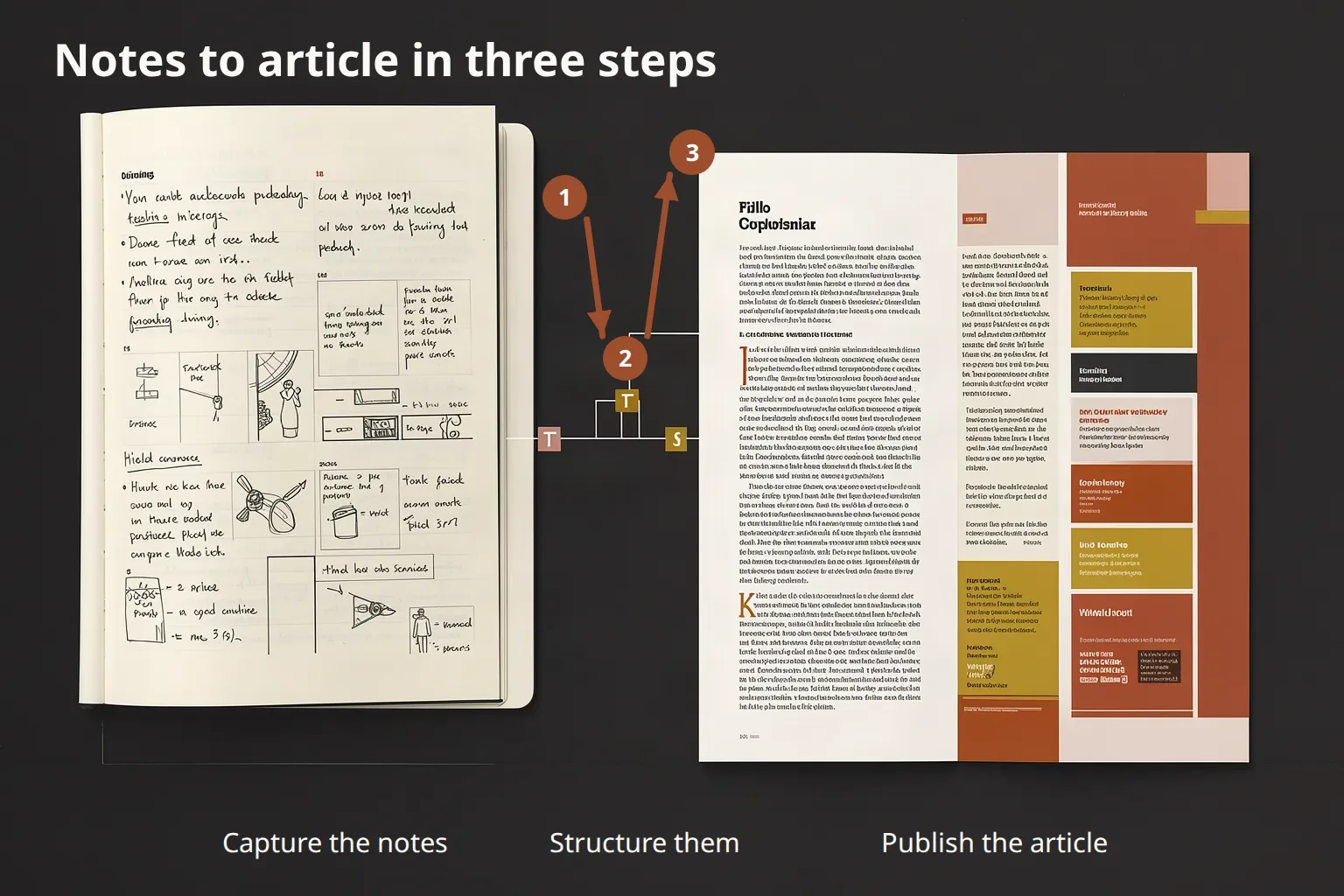
The base is a generated image of a handwritten notebook beside a printed article spread. The aim was to read it as three steps. The layout has a title at the top left, three numbered badges, two bold arrows and three labels along the bottom. Each arrow names two badges as its ends, so it starts and stops at the badges' edges without any coordinates.
The analysis showed a dark, plain strip along the bottom (cells A6 to C6: brightness 0.14 to 0.16, busyness 0.0007 to 0.0014) and a dark top row, so the title and the three labels went there.
The render report was empty: no warnings and no automatic scrim. The first attempt put badge 3 on top of the article's headline and still returned no warning, because the engine knows how bright and busy each cell is, not what the picture contains. Moving a badge off important content is the author's job. In the second attempt badge 3 sits above the corner of the spread.
The text check in expect mode found all four strings: the title and the three labels. The picture was stored as webp at quality 82, 1,536 by 1,024 pixels and 129,602 bytes.
Example 2: a title over a busy picture
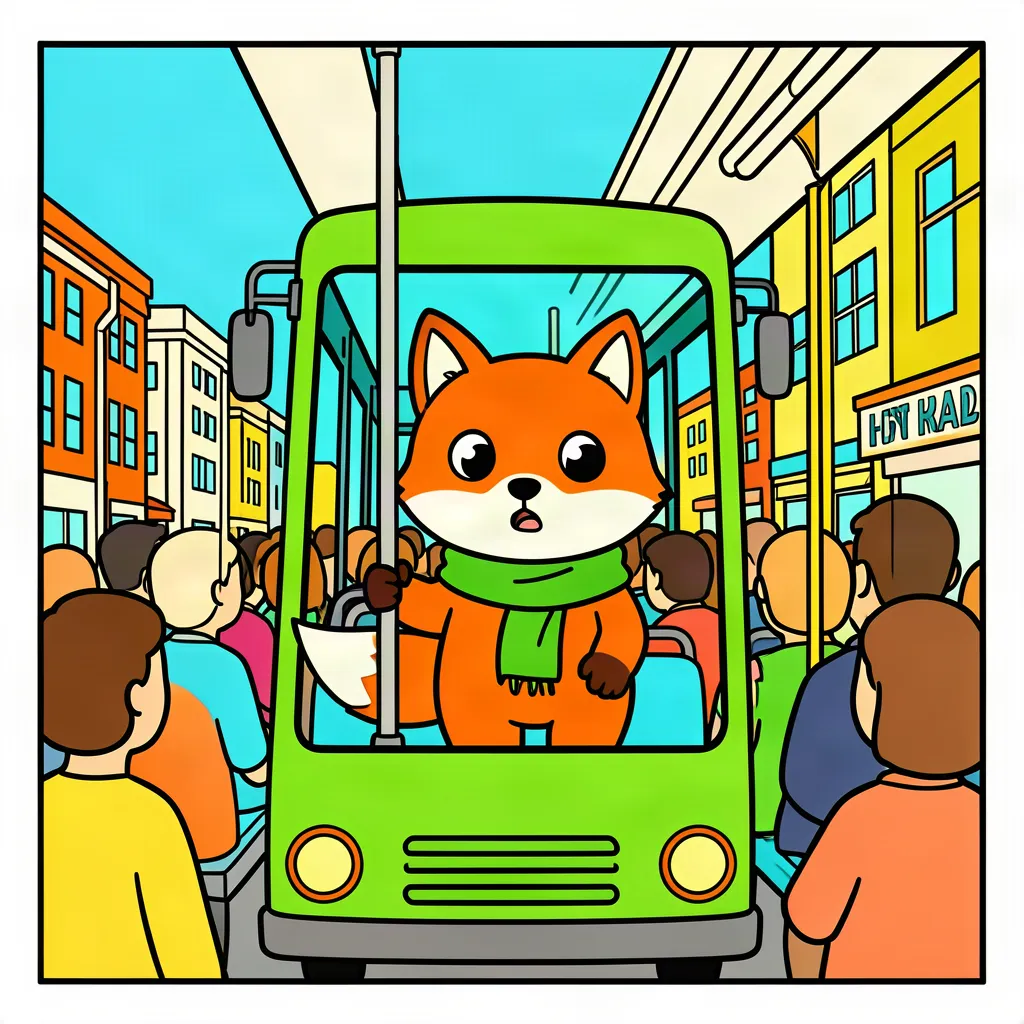
The base is a cartoon scene with sky, buildings, a bus roof and a crowd. A title at the top would sit on all of it. The first picture below is the base alone.
The analysis explained the problem. On the default 6 by 6 grid it returned no safe zone at all. The two nearest candidates it reported were only 19 and 24 per cent quiet, against the 90 per cent the policy asks for. In the top two rows brightness runs from 0.61 to 0.83 and busyness from 0.03 to 0.11, so white text placed there without help would not read.
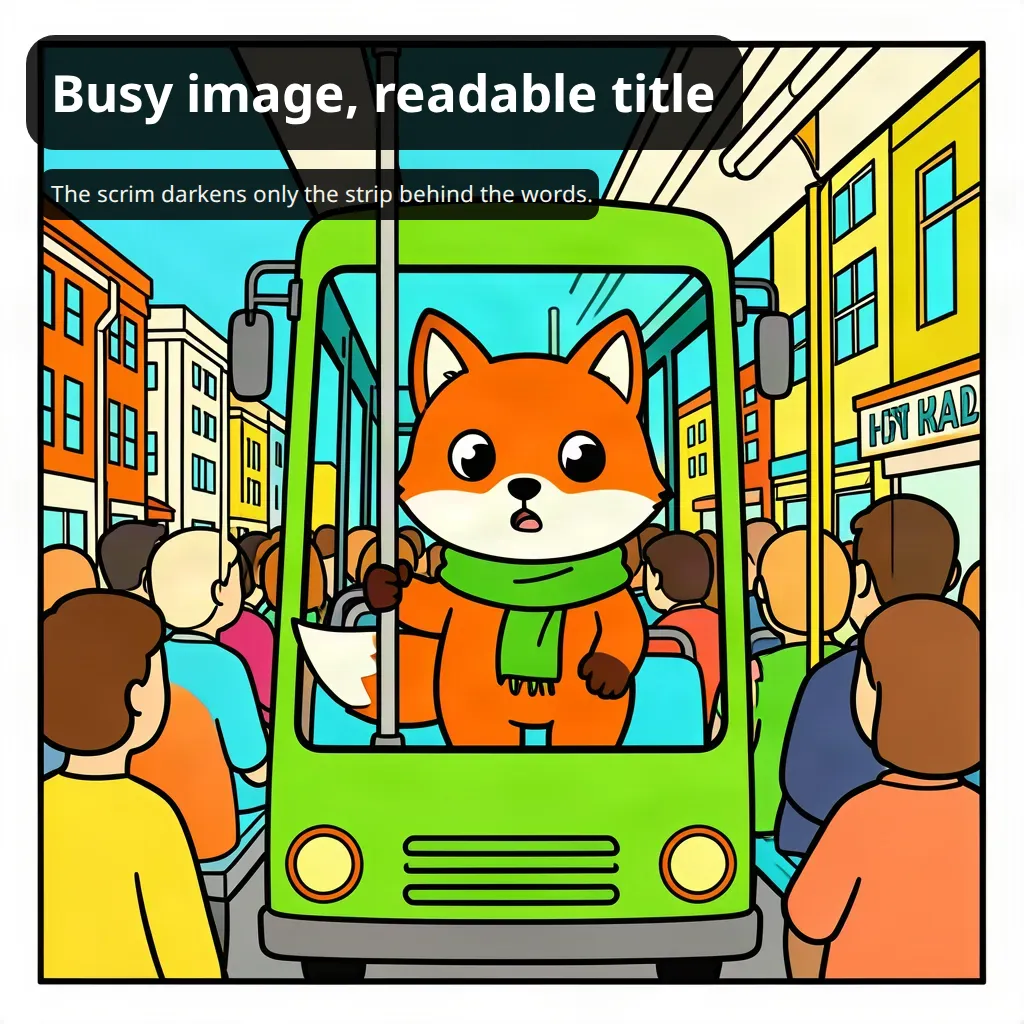
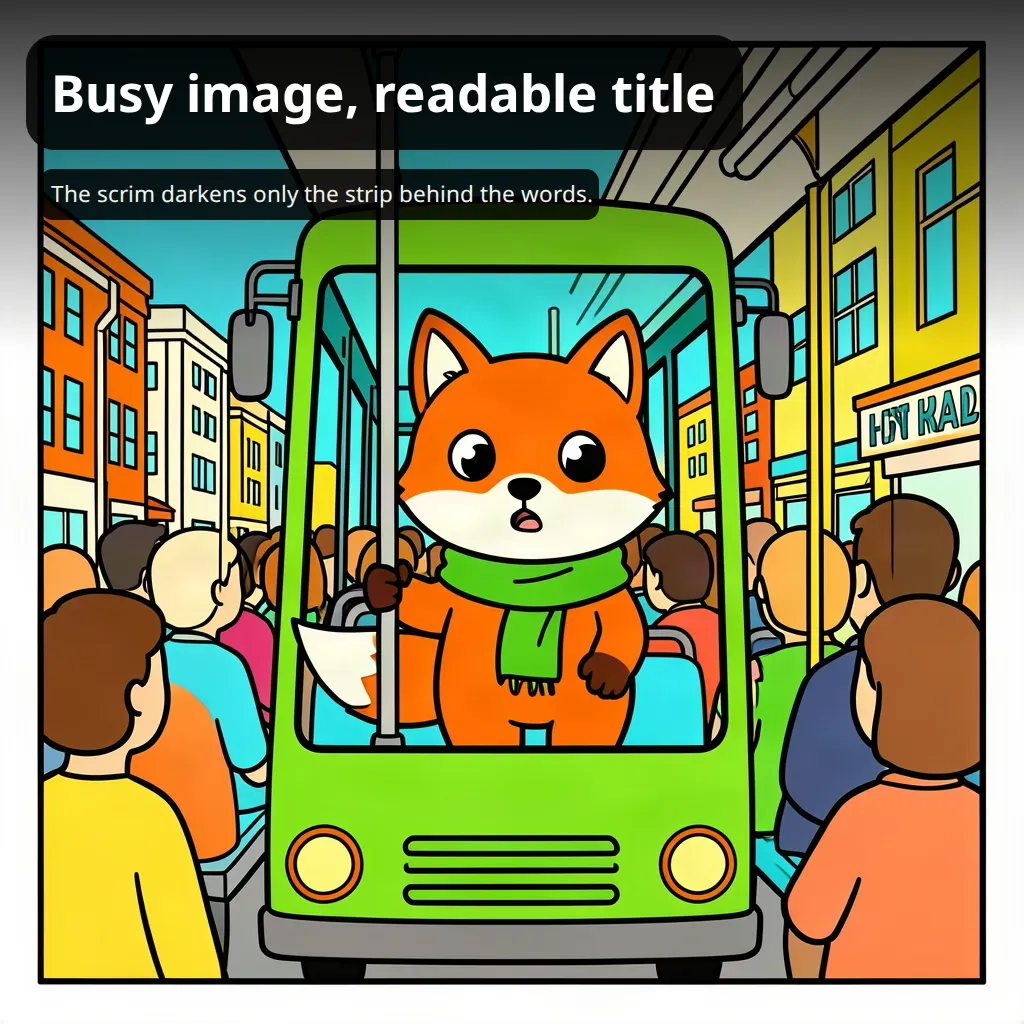
Two layouts were then drawn over that base, each with a title and a caption in near-white text. The second picture has no scrim in its layout. The third adds a scrim element across the top third of the picture at strength 0.8.
The two reports were identical: no warnings, and two automatic scrims. For the title the engine measured a contrast of 1.72 to 1 against the picture and added a dark panel that raised it to 7.82. For the caption it measured 1.60 and raised it to 7.20. Both panels were drawn at strength 0.85, which is the policy's maximum. The scrim written into the third layout did not switch the automatic ones off, because the engine measures against the base image, not against a scrim you drew. The third picture therefore has both: a gradient band across the top and a panel behind each line.
In practice, leave the scrim out and let the engine add one, then read the automatic scrims in the report to see what was added. Draw your own when you want a design choice, such as a band across the whole top, and expect the panels as well. The two pictures are 114,780 and 109,702 bytes.
Example 3: a grid preview
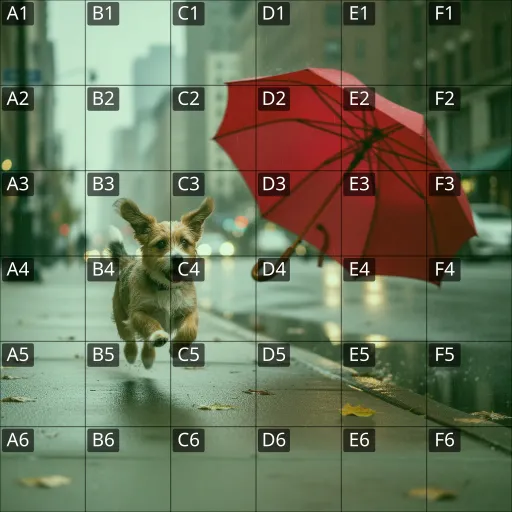
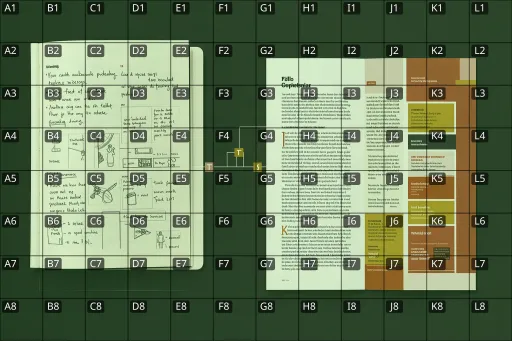
preview_image_grid draws the grid and its cell names over a copy of the picture, so a person can see the cells a layout will use. The first picture is the default 6 by 6 grid over a street scene. The second is a 12 by 8 grid, requested with the grid field, over the notebook picture. The cells are smaller, so a layout can be more exact.
The street scene shows what the measurements mean. The analysis ranked five safe zones, led by the upper right (columns D to F, rows 1 and 2, score 0.094). That zone includes part of the smooth red canopy of the umbrella. Quiet here means flat, not empty, so a ranked zone can sit on part of the subject. The subject estimate, a window covering about 60 per cent of the width and height and starting near the left edge, contained the dog. Treat both as hints and check them against the preview.
The preview returned PNG files of 397,827 and 187,434 bytes at 512 pixels wide. Both are over the 153,600-byte image budget, so they were converted to webp with image_transform (one format operation at quality 80). The results are 27,776 and 26,700 bytes, which is what appears here. The preview also returns the cell measurements and the safe zones, so one preview call can stand in for a separate analysis call.
Faces are not covered. The analysis returns an empty list of faces and the status 'not_evaluated', with the reason that face detection is not implemented in this release and that an empty list must not be read as 'no faces'. A label placed over a person's face is something only a person looking at the picture can catch.
Example 4: callouts on a grid of your own
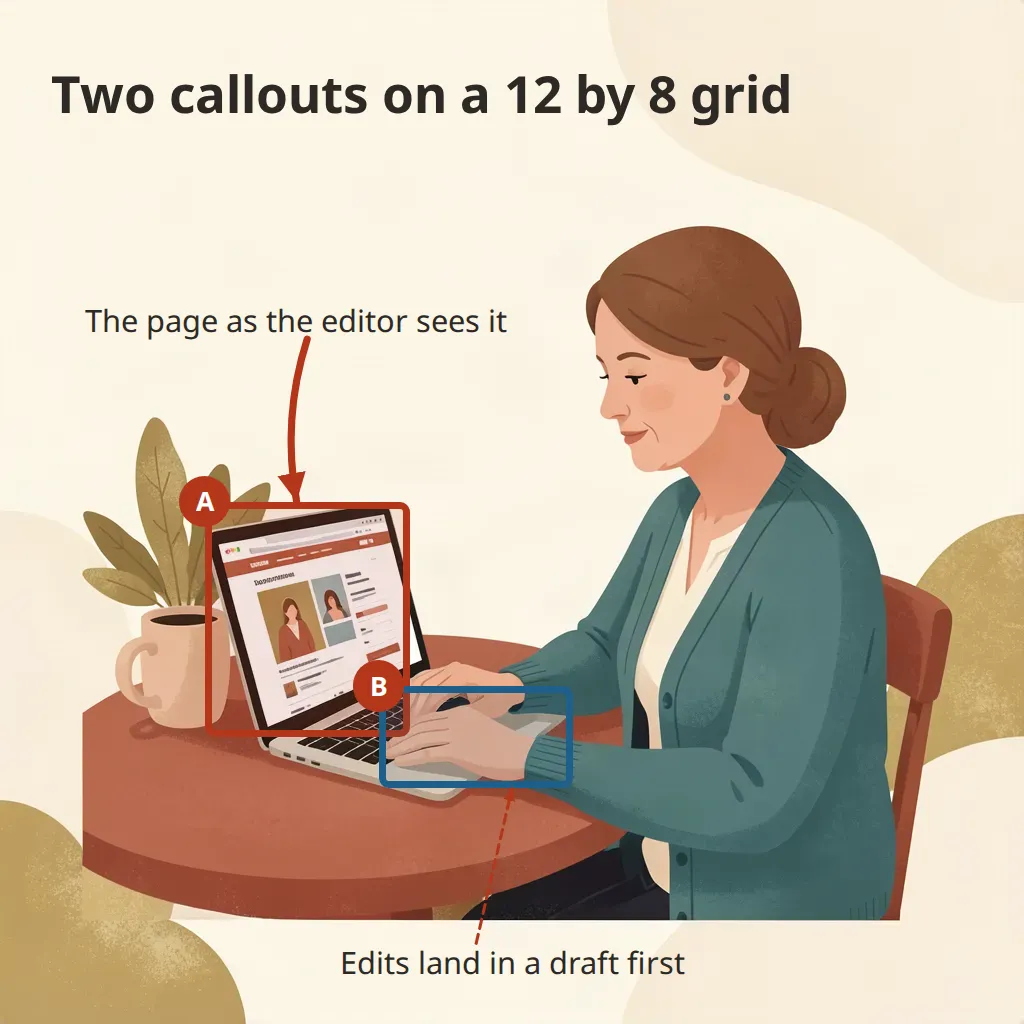
The base is a flat illustration of a person at a laptop. The layout asks for a 12 by 8 grid, so one label is placed by the cell name B3 on that grid and the rest by points. It has two boxes drawn as outlines with a light fill, one red around the laptop and one blue around the hands. Each box has a badge at its corner, labelled A and B instead of numbers (a badge takes a whole number or a label of up to four characters). A bold arrow with a gentle curve runs from the first label to box A, and a dashed arrow runs from the bottom label up to box B.
The first attempt was weaker. Its four-pixel outlines at 12 per cent fill were hard to see, the title wrapped to two lines, and a label wrapped with a single word on its second line. The report said so with two TEXT_WRAPPED warnings. The second attempt uses seven-pixel outlines in bolder colours and wider text limits, and its report is empty. The boxes were placed by eye from the grid preview, and each overshoots the thing it frames by a little.
The width limit is a real limit. Text longer than it wraps, and widening it fixed both wraps here. It does not fix the drift described in Example 5, where the text already fits inside the limit.
The text check matched four of the five strings: the title, the bottom label, A and B. It reported 'The page as the editor sees it' as missing even though it is on the picture, because the recognition step read 'the' as 'ne'. The picture is the evidence. The check is a second opinion.
Example 5: the render report, before and after
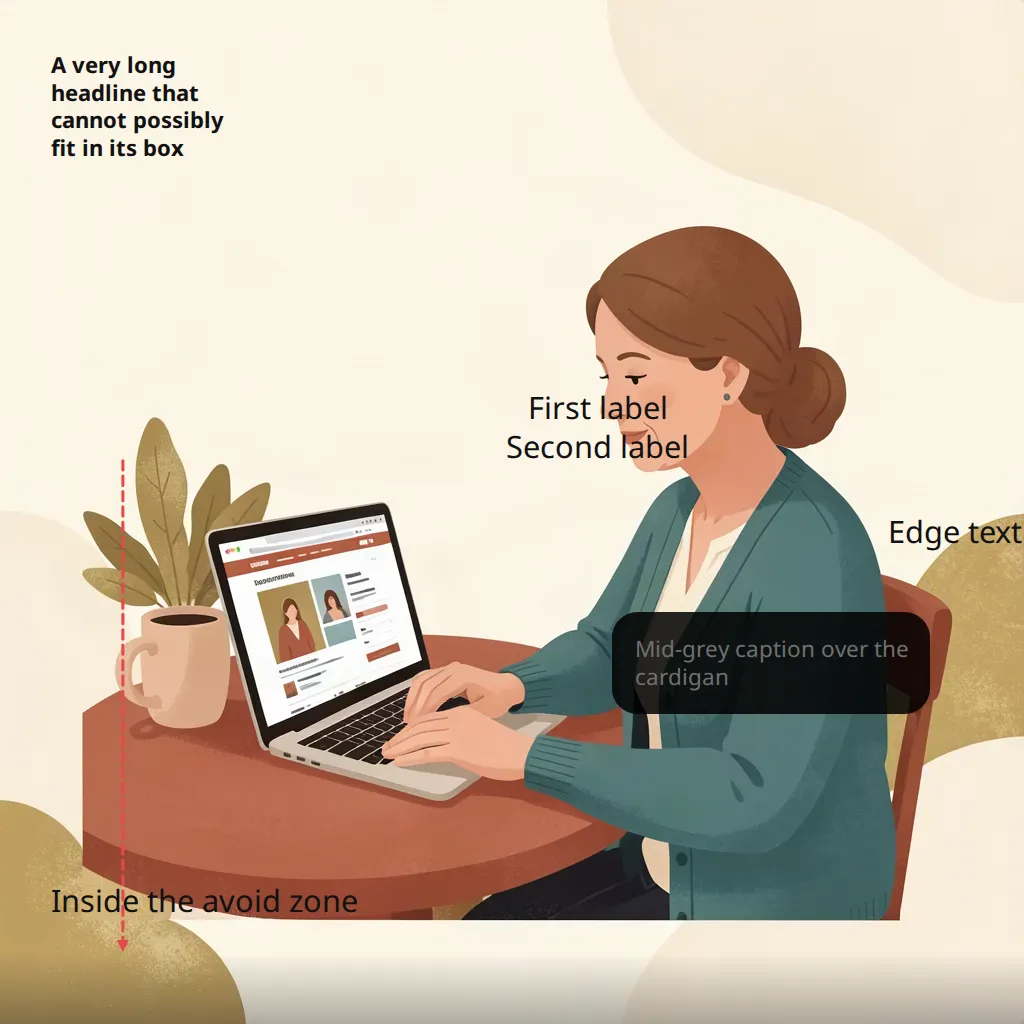
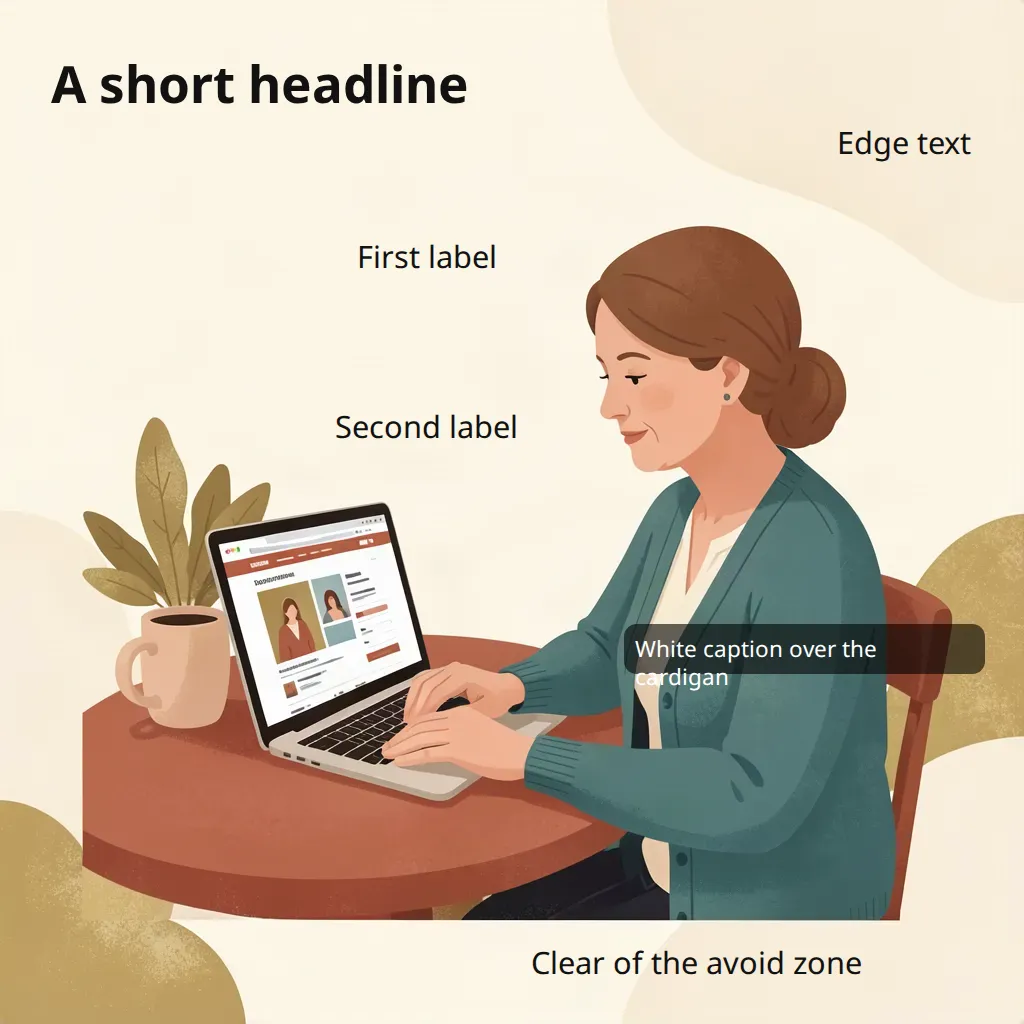
This layout was written to misbehave, over the same illustration. The first picture is the result. The second is the same words after the layout was corrected. The first report held nine warnings.
TEXT_SHRUNK. The long headline, placed in a box 18 per cent of the width, was cut from 51.2 to 22.0 pixels.
TEXT_WRAPPED, twice. The headline broke into 4 lines and the grey caption into 2.
AVOID_ZONE_OVERLAP. A label was placed inside a declared avoid zone. The engine reported it and left the label where it was put.
COLLISION_PUSHED, twice. Two labels given the same cell were pushed apart. Each warning names the other label.
CLAMPED_TO_CANVAS, twice. Text that started 99 per cent of the way across was pulled back by 125.7 pixels so that it ends at the edge. The scrim at the bottom was moved by a rounding error of about 1e-13 pixels, a harmless warning.
CONTRAST_LOW. Grey caption text (#707070) over the cardigan measured 1.18 to 1. The automatic scrim, at its maximum of 0.85, raised that only to 2.65, short of 4.5, so the warning fired. The picture shows it: the caption sits on a dark panel and is still hard to read.
Two problems in that picture produced no warning. A dashed arrow aimed at the scrim element ended at the scrim's edge, with no ARROW_TARGET_NO_BOX warning, and on the way it was drawn straight through a label. And a label that covers something in the picture is never reported, as in Example 1. The engine warns about text, collisions and contrast. It does not read the picture or trace the path of an arrow.
The corrected layout has a short headline, labels in separate cells, the edge text anchored by its right edge, the avoid-zone label moved clear, and the caption in white. The automatic scrim used its default strength of 0.6 and lifted the caption from 3.85 to 7.55, so CONTRAST_LOW did not fire.
One warning remains. MEASURED_BOX_DRIFT on the caption reports a predicted height of 28.2 pixels against a measured 56.3, a difference of about one line: the caption wrapped to two lines although the engine had planned one. The predicted width was 338 pixels and the measured text was 342, about 1 per cent wider. That fits an explanation in which the engine reserves the box at the predicted width and the real text does not quite fit it. The engine was not inspected, so that cause is inferred from the numbers.
Neither obvious fix worked. Widening the width limit from 0.34 to 0.6, and naming a different font (Noto Sans), each returned a byte-identical image. Here the dark panel still covers both lines, so the picture reads well. The warning matters when something sits directly below the text, so leave room for a second line there, or shorten the text.
Example 6: a safe-zone caption, a box and a logo stamp
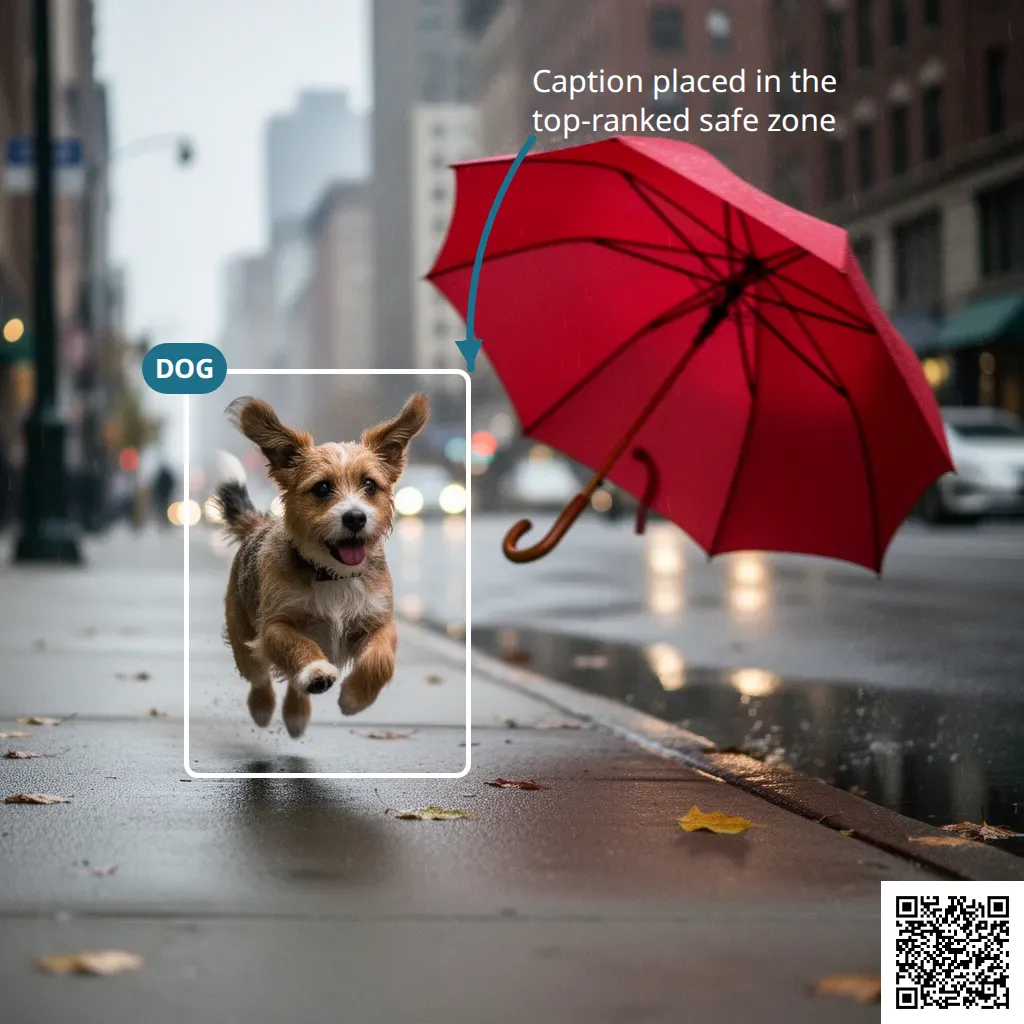
The base is a generated street scene with a dog and a red umbrella. The analysis ranked the upper right (columns D to F, rows 1 and 2) as the best safe zone, so the caption went to its top-left corner. A white outline box with no fill frames the dog and carries a badge reading DOG. A bold arrow with a curve of 0.35 runs from the caption to the box. A logo element stamps a small square image in the bottom-right corner.
A logo takes a reference to an image that already belongs to the article, a size as a fraction of the picture's shorter edge (0.14 here), and a position that is the logo's top-left corner. At 0.86 across and 0.86 down with a size of 0.14, it ends exactly at the corner. The site had no logo image to use (a search by the tag 'logo' returned nothing), so the stamp is a QR code made with generate_code that points at this article's address. It was not scanned, so whether it reads is unverified.
The report held one warning, TEXT_WRAPPED: the caption broke into two lines, which is what the picture shows and it reads well. The text check matched the caption, reported 'DOG' as missing although the badge is plainly on the picture, and reported a string that was never drawn, 'Never rendered label', as missing, which is the right answer. The check can say no to a word that is there. The one word that was never drawn was correctly reported missing.
Settings and limits, as read on 15 October 2026
These values come from get_image_analysis_policy, read on 15 October 2026. The site had no stored settings, so it ran on the platform defaults.
Where to change it.
set_image_analysis_policychanges the site's settings. It is an owner-level action and was not called for this article. A single call can also pass a policy override, which the tool echoes back as the policy it used. That was not exercised.Grid. The default is 6 by 6 cells. The current range is 2 to 24 on each side. A request for 30 by 30 was refused with the message
grid 30x30 is outside the allowed bounds (2..24 columns and 2..24 rows), and a request for 1 by 1 was refused the same way. The policy would accept a maximum of up to 64 if an owner raised it. That was not tested.Analysis size. According to the tool description, images larger than 4,096 pixels on a side, or 16,777,216 pixels in total, are scaled down for analysis rather than refused. That was not tested.
Quiet zones. A safe zone needs at least 90 per cent quiet area, no cell busier than 0.035, an average busyness of at most 0.02 and a brightness spread of at most 0.16, measured on a 24 by 24 base grid. When none qualifies the tool reports up to 3 nearest candidates. The busy cartoon returned two.
Automatic scrim. Strength 0.6 by default and never more than 0.85. Padding fraction 0.4 and corner radius fraction 0.25.
Output. PNG by default, or jpeg or webp, with a quality of 1 to 100 for jpeg and webp. The image budget is 153,600 bytes per image, with webp preferred. The content contract records a known discrepancy dated 6 August 2026 about whether an over-budget image warns or is blocked. It was not re-tested.
Layout size. From the tool description, not tested: canvas edges of 1 to 4,096 pixels and about 16.8 megapixels after the pixel-density factor (1 to 3), at most 256 elements and 64 avoid zones per layout, and at most 5 MB per base image or logo and 20 MB together.
Text recognition. The text check makes up to 4 passes: the image as it is, two black-and-white thresholded versions and a colour-key pass, with a 2 times upscale.
Writes.
annotate_imagecounts as a write. The allowance is 60 writes per 10 minutes per member and is shared by everyone using that member account. While several agents worked at once, annotation was refused five times, and each refusal named a wait between 31 and 303 seconds. Reads such as the analysis, the policy and the text check were never refused. Retry a refused write with the same idempotency key.Fonts. The site lists 13 font families. Three are bundled (Noto Sans, Noto Serif and Noto Naskh Arabic), and Noto Sans is the default for Latin text. Naming Inter first and then system fonts rendered the same bytes as naming Noto Sans, which points to Noto Sans having been used. Whether the other registered families can be used in
annotate_imagewas not tested.
Warnings and refusals: what they mean and what to do
Warnings come back with a successful image. Refusals come back instead of one. These are the ones seen on 15 October 2026.
TEXT_SHRUNK. The text did not fit its box and was made smaller. Read the new size in the report. If it is too small to read, shorten the text or widen the box.
TEXT_WRAPPED. The text broke over more than one line. Often that is fine. Check that no single word is left alone on a line.
COLLISION_PUSHED and AVOID_ZONE_OVERLAP. One element was moved out of another's way, or an element sits inside an avoid zone and was left there. Give the elements different positions.
CLAMPED_TO_CANVAS. An element was pulled back inside the picture. Anchor the text by the side that touches the edge.
CONTRAST_LOW. Even with the automatic scrim, the text is below 4.5 to 1. Change the text colour or move the text to a quieter place.
MEASURED_BOX_DRIFT. The browser measured an element differently from the plan. A height difference of about one line means the text wrapped.
An unknown field.
spec is not a valid AnnotationSpec: elements.0: Unrecognized key(s) in object: 'glow'. The spec contains a field the tool does not know. Nothing is silently dropped, so remove the field.A cell outside the grid.
spec is not a valid AnnotationSpec: elements.0.at: cell "G7" is outside the 6x6 grid (columns A..F, rows 1..6). The position does not exist on the grid. Use a cell in range, or add a grid field to the spec.An image from another article.
Cross-request artifact references are not accepted; pass the request_id that owns the image.Adopt the image into this article first.The write limit.
Write rate limit: 60 writes per 10 minutes, per member. Wait 253s and try again.Wait the time named, then retry with the same idempotency key.
The tool descriptions name the codes TEMPLATE_INVALID and GRID_CELL_OUT_OF_RANGE for the first two refusals. The messages that came back carried the field path and the reason, but not those codes, so a script that waits for a code would not see one.
What the text check can and cannot tell you
check_image_text reads the text in an image and compares it with the words you expected. Matching ignores case and extra spaces, treats 0 and O as the same, and treats 1, l and I as the same. It looks for each expected string inside the text it found. Nothing else is forgiving: a misspelt word does not match. Results from this article's pictures:
Example 1. All four strings found.
Example 4. Four of five found, with one false miss: the recognition step read 'the' as 'ne'.
Example 2. Both strings reported missing, although the picture shows them clearly. The tool tried three passes, and a second call limited to the title area with a colour-key pass found only part of the title.
Example 5, first picture. One of six found. The headline, the labels, the edge text and the caption are all visible in the picture.
Example 6. The caption found. 'DOG' missing although it is on the badge. A string that was never drawn also missing, which is correct.
The base bus picture in expect_none mode. Fourteen short fragments flagged, such as 'RAL' and 'lly)'. None is a readable word, and none matches the lettering on the shop sign at the right of the picture, which reads as meaningless letters. So this pass did not catch the one piece of baked-in text that a person can see. A clean result from this mode is evidence of no obvious text, not a guarantee, and the tool description says the same.
Read a pass as good evidence that the words rendered. Read a miss as a reason to look, not as proof that the words are absent, especially for small text on a busy or mid-tone background.
What was not verified
These were not exercised, or could not be confirmed, on 15 October 2026.
The admin chat's use of these tools. Every call was made through an editor's connector.
The warnings TEXT_OVERFLOW, ARROW_TARGET_NO_BOX and MEASUREMENT_UNAVAILABLE never occurred, and neither did the refusals ANNOTATE_BASE_MISMATCH and ANNOTATE_BUDGET_EXCEEDED that the tool description names. MEASUREMENT_UNAVAILABLE matters most: it would mean that the absence of drift warnings proves nothing, so look at the picture.
A pixel-density factor above 1, and whether it changes the wrapping behaviour.
The stacking rule in general. Example 2 lists a scrim before the text that sits on it and the text came out on top. That is the only case tested, so 'first at the bottom' is confirmed for that case alone.
Repeat determinism of one identical layout. Three layouts that differed only in a width limit and a font name returned identical bytes, which is consistent with the tool's claim but is not a repeat test.
PDF pages and SVG images as the base. The policy names settings for both (SVG rasterised at a 2,048-pixel long edge, PDF pages analysed at 150 dpi). Only raster images were used.
A per-call policy override, and changing the site's policy.
Fonts other than Noto Sans inside
annotate_image.Whether the QR stamp scans.
Faces. The tool does not evaluate them, so nothing here protects against a label over a face.
How this article's pictures were made
No image was generated for this article. The four base pictures already existed on the site and were adopted into it. Every new picture came from deterministic tools: annotate_image, preview_image_grid, image_transform (the webp conversions) and generate_code (the QR stamp). No model was called, so there was no model spend.
Two earlier attempts were replaced and are not shown: a version of Example 1 in which badge 3 covered the headline, and a version of Example 4 with thin outlines. They remain stored under the article. Each picture was fetched and viewed before it was used.
Related reading
How Images Are Found, Made and Checked, the overview of the image pipeline this article builds on.
How an artifact is made: from brief to published image, a short illustrated walkthrough.
Downloadable PDFs: Turning Platform Content Into a Document, the document side of the same artifact system.
AI images in your site's own style: brand imagery, routing, candidates and edits, companion article on generating pictures in a site's own style.
Text on images, spelled right: word art without AI typos, companion article on word art.
One image, every screen: resizing, smart crops, splits and layouts, companion article on resizing, cropping and splitting.
Checking images against the brand: colour, contrast, sharpness and logo placement, companion article on measuring finished pictures.
Download any article as a PDF: templates, kinds and the quality check
Editing PDFs without a designer: page numbers, watermarks, merging, text and forms
Finding and importing stock images: search, shortlist, licence and attribution